
Canvas rendering
Canvas rendering is a Browser Isolation capability that optimizes performance for web applications using the HTML5 Canvas API. It sends vector draw commands to the client instead of rasterized bitmaps, reducing bandwidth consumption and improving frame rates for productivity applications.
Browser Isolation uses Network Vector Rendering (NVR) to deliver efficient vector commands rather than rendered pixels. However, HTML5 Canvas content previously required server-side rasterization, sending large bitmaps for every frame.
Canvas rendering extends NVR to Canvas-based applications by:
- Capturing draw commands made to the HTML5 Canvas element.
- Converting and sending those commands to the client as NVR instructions.
- Rendering the Canvas content on the client onto an offscreen texture.
- Compositing the texture into the final document output.
Canvas rendering improves performance for productivity applications that rely on the HTML5 Canvas API:
| Application | Improvement |
|---|---|
| Microsoft Word | 10x bandwidth reduction |
| Microsoft Excel | Smooth scrolling and data entry |
| Microsoft PowerPoint | Fluid animations |
| Google Sheets | Consistent 30fps rendering |
| Google Maps | Smooth panning and zooming |
| Web-based terminals and AI notebooks | Fast and responsive text input and display |
Canvas rendering supports 2D Canvas contexts only. The following are not supported:
- WebGL and WebGPU contexts
- 3D graphics applications
- Advanced Canvas features requiring GPU acceleration
Canvas rendering is on by default for all Browser Isolation customers. No configuration is required.
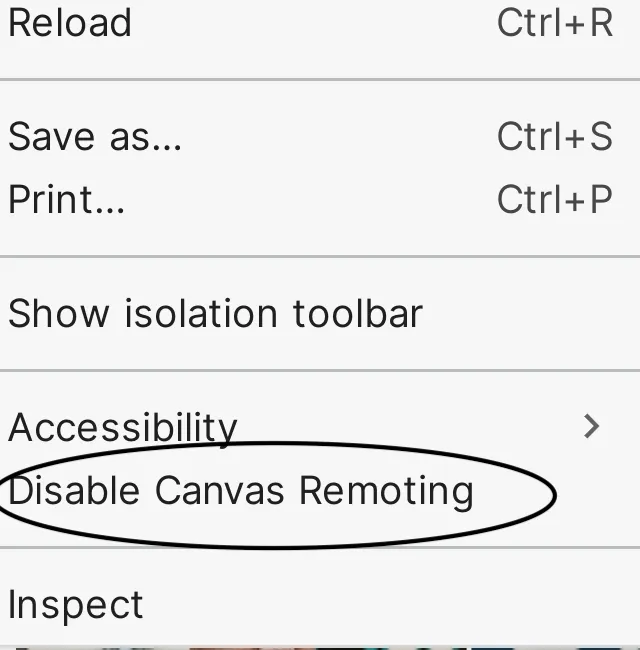
- Right-click on the background of the isolated webpage.
- Select Disable Canvas Rendering from the context menu.
- Right-click on the background of the isolated webpage.
- Select Enable Canvas Rendering from the context menu.
Canvas content renders slowly
If Canvas-based applications appear choppy or consume excessive bandwidth:
- Verify canvas rendering is on by right-clicking the page background.
- Check that the context menu shows Disable Canvas Rendering (indicating it is active).
- If the issue persists, open a support case and provide the Ray ID from the error page.
Graphical glitches or missing elements
If Canvas content displays incorrectly after reconnecting from a network interruption:
- Refresh the isolated page.
- If the issue persists, select Disable Canvas Rendering from the right-click menu.
- Re-enable canvas rendering after the page reloads.