
Register the Cloudflare One Client with minimal user interaction
Administrators can automate Cloudflare One Client (formerly WARP) registration on managed devices and minimize the number of clicks required from an end user.
During the default Cloudflare One Client enrollment process, end users typically need to complete several steps in order to login:
- Review Terms and Conditions in the Cloudflare One Client GUI and acknowledge your company's use of the Cloudflare One Client.
- Select their identity provider from the Cloudflare Access login screen.
- Complete the authentication steps required by the identity provider.
- Interact with a browser popup requesting permission to launch the Cloudflare One Client.
This guide covers how to eliminate steps 1, 2 and 4 from your Cloudflare One Client deployment.
On iOS and Android / ChromeOS, end users will still be asked questions required by their platform such as accepting notifications or installing the VPN Profile.
To skip the Terms and Conditions screens that are usually presented to users, set the onboarding parameter to false in your MDM deployment file. Here is an example mdm.xml file:
<dict> <key>organization</key> <string>your-team-name</string> <key>onboarding</key> <false/></dict>If you are only using one identity provider for device enrollment, turn on Instant Auth in your device enrollment permissions. This allow users to skip the Cloudflare Access login page and go directly to your SSO login event.
You can configure your browser to automatically launch the Cloudflare One Client application after a successful login and skip the Open Cloudflare WARP.app popup.
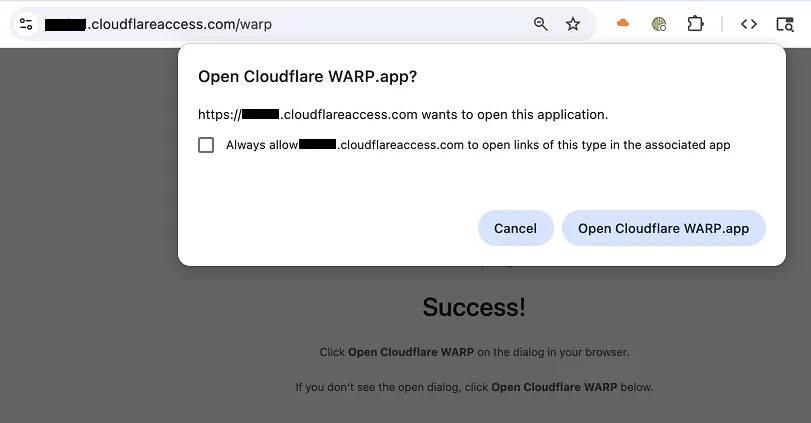
Note: Labels in this image may reflect a previous product name.
Chromium-based browsers such as Google Chrome and Microsoft Edge have a policy setting called AutoLaunchProtocolsFromOrigins ↗. This setting takes in two parameters: a protocol for the browser to launch and the origins that are allowed to launch it. For the browser to launch the Cloudflare One Client, you need to set the protocol to com.cloudflare.warp and the origin to your Cloudflare Zero Trust team domain (https://<your-team-name>.cloudflareaccess.com).
On Windows, you can configure AutoLaunchProtocolsFromOrigins by adding a new registry key.
To add the registry key manually:
-
Open Registry Editor as Administrator.
-
Navigate to the policies folder for your browser:
- Google Chrome:
HKEY_LOCAL_MACHINE\SOFTWARE\Policies\Google\Chrome - Microsoft Edge:
HKEY_LOCAL_MACHINE\SOFTWARE\Policies\Microsoft\Edge
- Google Chrome:
-
Create a new string value:
- Value Name:
AutoLaunchProtocolsFromOrigins - Value Data:
[{"allowed_origins": ["https://<your-team-name>.cloudflareaccess.com/"], "protocol": "com.cloudflare.warp"}]
Be sure to replace
<your-team-name>with your actual Zero Trust team name. - Value Name:
Instead of using the Registry Editor, the registry key can also be created using a Group Policy Object (GPO), PowerShell script, or with an MDM such as Intune.
On macOS, you can configure AutoLaunchProtocolsFromOrigins by deploying a property list (plist) file for the browser. The exact instructions will vary depending on your MDM. The general procedure is as follows:
-
Create a new plist file with the following name (case sensitive):
- Google Chrome:
com.google.Chrome.plist - Microsoft Edge:
com.microsoft.Edge.plist
- Google Chrome:
-
Using a text editor, add the following content to your plist:
<key>AutoLaunchProtocolsFromOrigins</key><array><dict><key>allowed_origins</key><array><string>https://<your-team-name>.cloudflareaccess.com</string></array><key>protocol</key><string>com.cloudflare.warp</string></dict></array>Be sure to replace
<your-team-name>with your actual Zero Trust team name. -
Some MDMs require converting the
.plistto a.mobileconfigbefore pushing it to a device. You can use a file converter ↗ or modify the following examplecom.google.Chrome.mobileconfig:<?xml version="1.0" encoding="UTF-8"?><!DOCTYPE plist PUBLIC "-//Apple//DTD PLIST 1.0//EN" "http://www.apple.com/DTDs/PropertyList-1.0.dtd"><plist version="1.0"><dict><key>PayloadIdentifier</key><string>com.google.chrome</string><key>PayloadRemovalDisallowed</key><true/><key>PayloadScope</key><string>System</string><key>PayloadType</key><string>Configuration</string><key>PayloadUUID</key><string>8FCBDCA7-87B3-4610-A01A-B0FE4C5B57C8</string><key>PayloadOrganization</key><string></string><key>PayloadVersion</key><integer>1</integer><key>PayloadDisplayName</key><string>Google Chrome Policy</string><key>PayloadContent</key><array><dict><key>PayloadType</key><string>com.apple.ManagedClient.preferences</string><key>PayloadVersion</key><integer>1</integer><key>PayloadIdentifier</key><string>com.normandale</string><key>PayloadUUID</key><string>8FCBDCA7-87B3-4610-A01A-B0FE4C5B57C8</string><key>PayloadEnabled</key><true/><key>PayloadDisplayName</key><string>Custom: (com.google.Chrome)</string><key>PayloadContent</key><dict><key>com.google.Chrome</key><dict><key>Forced</key><array><dict><key>mcx_preference_settings</key><dict><key>AutoLaunchProtocolsFromOrigins</key><array><dict><key>allowed_origins</key><array><string>https://<your-team-name>.cloudflareaccess.com</string></array><key>protocol</key><string>com.cloudflare.warp</string></dict></array></dict></dict></array></dict></dict></dict></array></dict></plist> -
Upload the
.plistor.mobileconfigfile to your preferred MDM. -
Deploy the configuration profile to your devices.
For more information on configuring browser policies on macOS, refer to the Google Chrome ↗ or Microsoft Edge ↗ documentation.