
Upload Recording to Your Cloud
You can pass an optional object storage_config in the start recording request
to publish the recording directly to your cloud provider. If a path is
specified, the recorded video will be stored there, otherwise the default is the
root of the directory.
The filename for recording will be the same as given in output_file_name.
You can configure storage configs for RealtimeKit Recordings in the following ways:
You can specify storage configuration details using RealtimeKit Dashboard for all meetings.
- In the Cloudflare RealtimeKit Dashboard ↗, go to Recordings tab.
- Click Setup Storage.
- Specify the details for your cloud provider. We support transferring recordings to Cloudflare R2, AWS S3, Azure, DigitalOcean, and Google Cloud Storage (GCS) buckets.
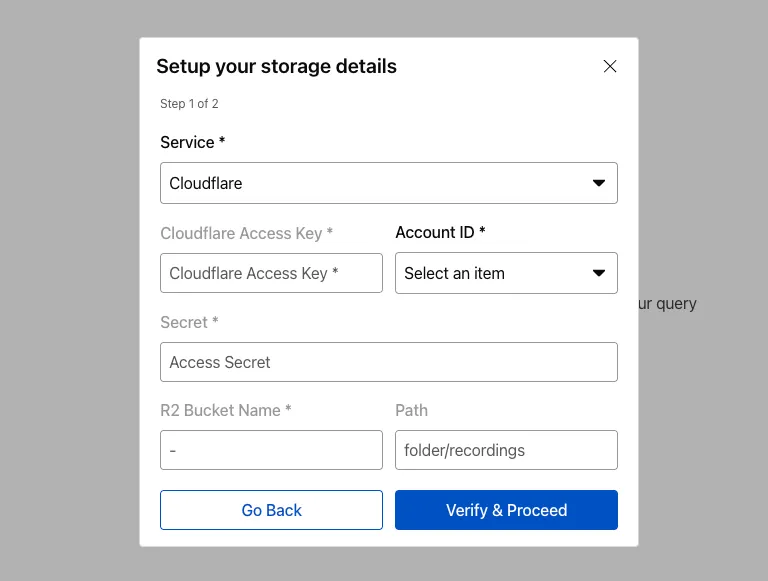
To familiarize yourself with the RealtimeKit REST APIs, we recommend exploring the RealtimeKit REST API.
This allows for the most granular level of control, and lets you specify a storage_config for a specific recording started on a meeting.
curl --request POST \ --url https://api.cloudflare.com/client/v4/accounts/<account_id>/realtime/kit/<app_id>/recordings \ --header 'Authorization: Bearer <api_authorization_token>' \ --header 'Content-Type: application/json' \ --data '{ "meeting_id": "97440c6a-140b-40a9-9499-b23fd7a3868a", "storage_config": { "type": "cloudflare", "access_key": "your-access-key", "secret": "your-secret-key", "bucket": "your-bucket-name", "path": "/" }}'To familiarize yourself with the RealtimeKit REST APIs, we recommend exploring the RealtimeKit REST API.
Currently, the following cloud providers are supported:
To transfer recordings to Cloudflare R2, set the following fields in
the storage_config parameter:
- Type: Specify
cloudflare. - Access Key: Enter your R2 access key ID. For more information, see Create API tokens.
- Bucket: Enter the name of your R2 bucket.
- (Optional) Path: Specify the path to a sub-folder where recordings should be transferred. If this parameter is not passed, recordings will be transferred to the root folder of the bucket.
- Secret: Enter your R2 secret access key.
- Account ID: Enter your Cloudflare account ID.
To transfer recordings to the AWS S3 bucket, set the following fields in the
storage_config parameter:
- Type: Specify
aws. - Access Key: Enter your
aws_access_key_id. - Bucket: Enter your AWS S3 bucket name.
- (Optional) Path: Specify the path to a sub-folder where recordings should be transferred. If this parameter is not passed, recordings will be transferred to the root folder of the bucket.
- Secret: Enter your
aws_secret_access_key. - Region: Specify the region where your bucket is hosted, for example,
ap-south-1.
To transfer recordings to the Azure Blob Storage, set the following fields in
the storage_config parameter:
- Type: Specify
azure. - Access key: Enter your azure connection string. For more information on how to get the access key, see View account access key ↗.
- Bucket: Enter the name of your container. The container should be in the same storage account as the connection string.
- (Optional) Path: Specify the path to a sub-folder where recordings should be transferred. If this parameter is not passed, recordings will be transferred to the root folder of the container.
- Secret: Set to a blank string "".
- Region: Set to a blank string "".
To transfer recordings to the DigitalOcean Spaces, set the following fields in
the storage_config parameter:
- Type: Specify
digitalocean. - Access key: Enter your digital ocean access key. For more information, see Create DigitalOcean Space and API Key ↗.
- Bucket: Enter the name of your Spaces bucket.
- (Optional) Path: Specify the path to a sub-folder where recordings should be transferred. If this parameter is not passed, recordings will be transferred to the root folder of the container.
- Secret: Enter your Spaces secret.
- Region: Specify the region where your Spaces bucket is hosted, for example,
SGP1. For more information, see Region Availability Matrix ↗.
To transfer recordings to GCS, set the following fields in
the storage_config parameter:
- Type: Specify
gcs. - Bucket: Enter the name of your Cloud Storage bucket.
- (Optional) Path: Specify the path to a sub-folder where recordings should be transferred. If this parameter is not passed, recordings will be transferred to the root folder of the container.
- Secret: Enter your service account credentials. For more information, see service account credentials ↗.
- Region: Specify the region where your Cloud Storage bucket is hosted, for example,
US multi-region. For more information, see Bucket locations ↗.
You can change the name of the recording file using the file_name_prefix field. The default format for recorded file name is roomname_timestamp, but you can add an alphanumeric and underscore prefix to the default file name.
It's important to note that you can only add a prefix to the default format; you can't change the entire file name. For example, if you teach an online physics class at 9 a.m. using RealtimeKit, you could add Physics_9am to the file name. Physics_9am_roomname_timestamp would be the new file name.
For more information, see start recording a meeting.