
Deploy a WAF managed ruleset in the dashboard (account)
To deploy a managed ruleset for a single zone, refer to Deploy a WAF managed ruleset in the dashboard.
-
In the Cloudflare dashboard, go to the WAF page.
Go to WAF -
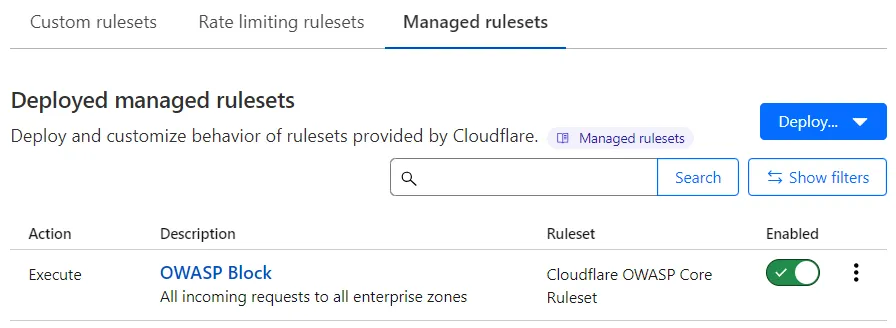
Go to the Managed rulesets tab.
-
Select Deploy > Deploy managed ruleset.
-
Next to the managed ruleset you want to deploy, select Select ruleset.
-
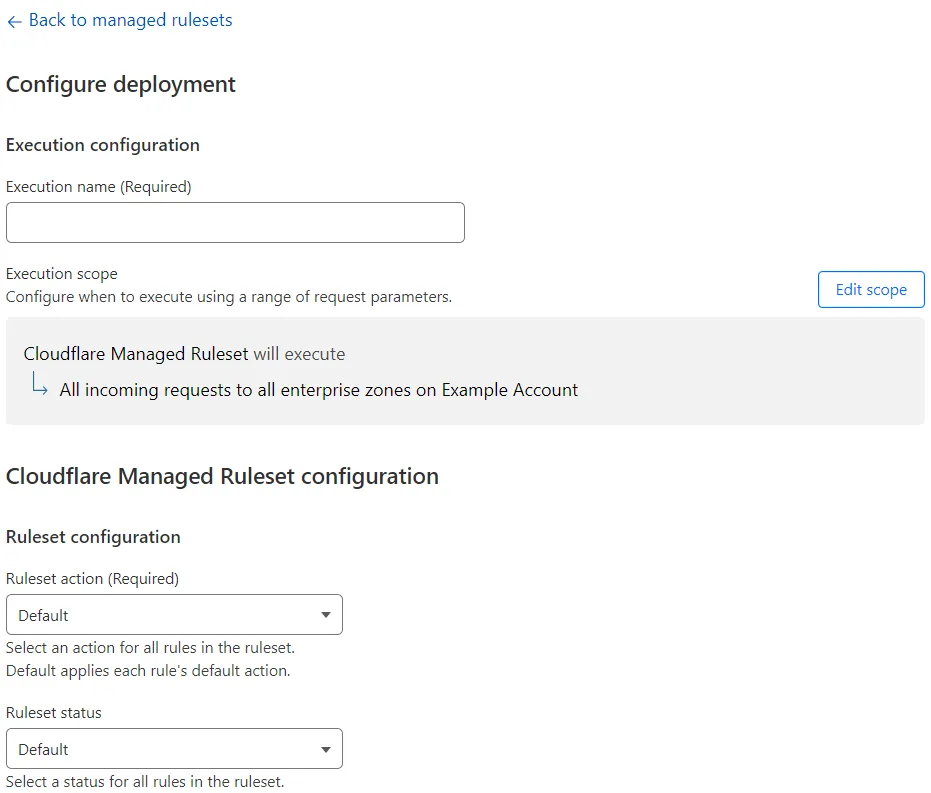
Give a name to the rule deploying the ruleset in Execution name.
-
(Optional) To execute the managed ruleset for a subset of incoming requests, select Edit scope and configure the expression that will determine the scope of the current rule deploying the managed ruleset.
-
(Optional) You can customize the behavior of the managed ruleset in the following ways:
- Configure the entire ruleset (affects all the rules)
- Configure several rules or rules with specific tags
- Configure a single rule
-
To deploy the managed ruleset immediately, select Deploy. If you are not ready to deploy, select Save as Draft.
The Deployed managed rulesets list will show an Execute rule for the managed ruleset you deployed.
Select the Enabled toggle next to a deployed managed ruleset to turn it on or off.
Configure a managed ruleset to define specific field values for one or more rules (for example, configure a rule with an action different from the action configured by Cloudflare). You can also turn off specific rules.
To skip one or more rules — or even entire WAF managed rulesets — for specific incoming requests, add an exception. Exceptions, also called skip rules, are shown as Skip rules in the Deployed managed rulesets list.
To configure an entire managed ruleset:
-
In the Cloudflare dashboard, go to the WAF page.
Go to WAF -
Go to the Managed rulesets tab.
-
Select the rule description of the Execute rule that deploys the managed ruleset you want to configure. Alternatively, select the three dots > Edit.
If you have not deployed the managed ruleset yet, do the following:
- Select Deploy > Deploy managed ruleset.
- Next to the managed ruleset you want to deploy and configure, select Select ruleset.
-
In the ruleset configuration section, set one or more rule fields from the available values in the drop-down lists. The exact options vary according to the managed ruleset you are configuring.
For example, select the action to perform for all the rules in the ruleset from the Ruleset action drop-down list.
-
If you are editing a deployed managed ruleset, select Save. If you have not deployed the managed ruleset yet, select Deploy to deploy the ruleset immediately, or Save as Draft to save your deployment settings for later.
-
In the Cloudflare dashboard, go to the WAF page.
Go to WAF -
Go to the Managed rulesets tab.
-
If you have already deployed the managed ruleset you want to configure, find the rule deploying that managed ruleset and select the rule description. Alternatively, select the three dots > Edit next to an Execute rule deploying the managed ruleset.
If you have not deployed the managed ruleset:
- Select Deploy > Deploy managed ruleset.
- Next to the managed ruleset, select Select ruleset.
-
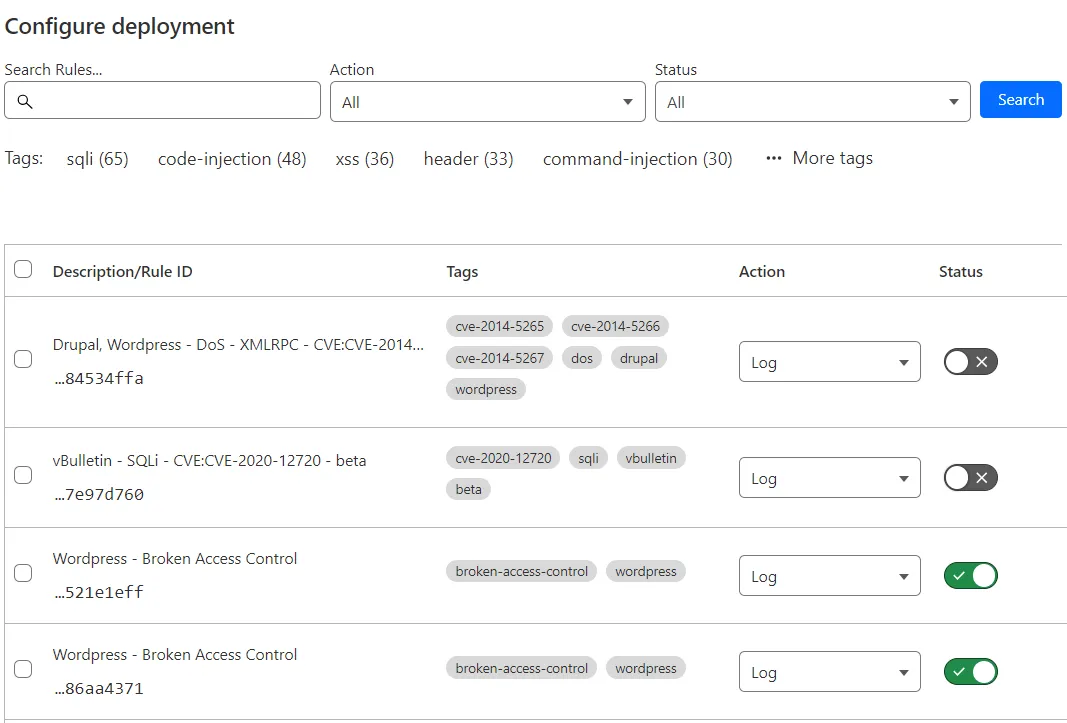
Select Browse rules.
-
Select one or more tags under the search input to filter the rules with those tags, and then select the checkbox in the top left corner of the table to select all the rules shown in the current page.
If not all the rules are displayed in the current page, extend your selection to all rules with the selected tags across all pages by selecting Select all <NUMBER> rules. -
Update one or more settings for the selected rules using the buttons displayed in the top right corner of the table (for example, Set status).
-
Select Next.
-
A dialog appears asking you if any new rules with the selected tags should be configured with the field values you selected.
- Select Include new rules if you want to apply your configurations to any new rules with the select tags.
- Select Only selected rules to apply your configurations to the selected rules only.
-
Select Save.
-
In the Cloudflare dashboard, go to the WAF page.
Go to WAF -
Go to the Managed rulesets tab.
-
If you have already deployed the managed ruleset you want to configure, find the rule deploying that managed ruleset and select the rule description. Alternatively, select the three dots > Edit next to an Execute rule deploying the managed ruleset.
If you have not deployed the managed ruleset:
- Select Deploy > Deploy managed ruleset.
- Next to the managed ruleset, select Select ruleset.
-
Select Browse rules.
-
Search for rules using the available filters.
-
In the results list, change the values for each rule as desired, using the displayed drop-down lists and toggles. For example, change the status of a rule using the Status toggle next to the rule.
To configure multiple rules with the same value, select the checkboxes for all the rules you want to configure. If not all the rules are displayed in the current page, you can extend your selection to all rules across all pages by selecting Select all <NUMBER> rules. Then, use the buttons displayed in the top right corner of the table — for example, Set status — to update one or more fields for the selected rules.
-
Select Next, and then select Save.
You can browse the available rules in a managed ruleset and search for individual rules or tags.
-
In the Cloudflare dashboard, go to the WAF page.
Go to WAF -
Go to the Managed rulesets tab.
-
Select the rule description of the Execute rule that deploys the managed ruleset you want to configure. Alternatively, select the three dots > Edit.
If you have not deployed the managed ruleset yet, do the following:
- Select Deploy > Deploy managed ruleset.
- Next to the managed ruleset you want to browse, select Select ruleset.
-
Select Browse rules.
-
In the Cloudflare dashboard, go to the WAF page.
Go to WAF -
Go to the Managed rulesets tab.
-
Under Deployed managed rulesets and next to the rule you want to delete, select the three dots > Delete and confirm the operation.