
Changelog
New updates and improvements at Cloudflare.

A new GA release for the macOS Cloudflare One Client is now available on the stable releases downloads page.
This release contains minor fixes and improvements.
The next stable release for macOS will introduce the new Cloudflare One Client UI, providing a cleaner and more intuitive design as well as easier access to common actions and information.
Changes and improvements
- Empty MDM files are now rejected instead of being incorrectly accepted as a single MDM config.
- Fixed an issue in local proxy mode where the client could become unresponsive due to upstream connection timeouts.
- Fixed an issue where the emergency disconnect status of a prior organization persisted after a switch to a different organization.
- Consumer-only CLI commands are now clearly distinguished from Zero Trust commands.
- Added detailed QUIC connection metrics to diagnostic logs for better troubleshooting.
- Added monitoring for tunnel statistics collection timeouts.
- Switched tunnel congestion control algorithm for local proxy mode to Cubic for improved reliability across platforms.
- Fixed initiating managed network detections checks when no network is available, which caused device profile flapping.
A new GA release for the Linux Cloudflare One Client is now available on the stable releases downloads page.
This release contains minor fixes and improvements.
The next stable release for Linux will introduce the new Cloudflare One Client UI, providing a cleaner and more intuitive design as well as easier access to common actions and information.
Changes and improvements
- Empty MDM files are now rejected instead of being incorrectly accepted as a single MDM config.
- Fixed an issue in local proxy mode where the client could become unresponsive due to upstream connection timeouts.
- Fixed an issue where the emergency disconnect status of a prior organization persisted after a switch to a different organization.
- Consumer-only CLI commands are now clearly distinguished from Zero Trust commands.
- Added detailed QUIC connection metrics to diagnostic logs for better troubleshooting.
- Added monitoring for tunnel statistics collection timeouts.
- Switched tunnel congestion control algorithm for local proxy mode to Cubic for improved reliability across platforms.
- Fixed initiating managed network detections checks when no network is available, which caused device profile flapping.
Access authentication logs and Gateway activity logs (DNS, Network, and HTTP) now feature a refreshed user interface that gives you more flexibility when viewing and analyzing your logs.
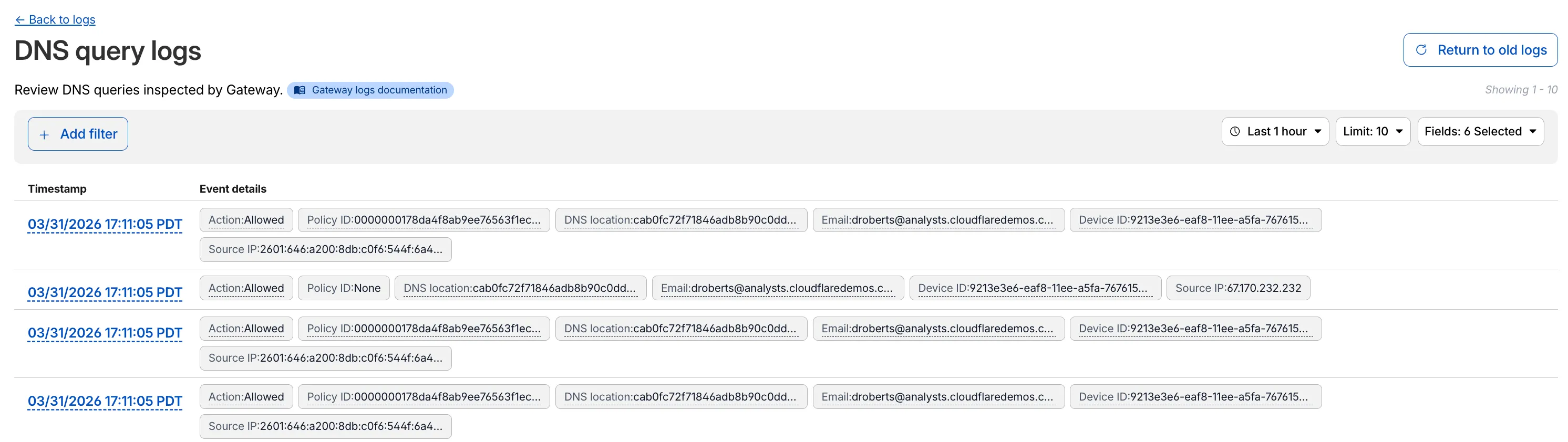
The updated UI includes:
- Filter by field - Select any field value to add it as a filter and narrow down your results.
- Customizable fields - Choose which fields to display in the log table. Querying for fewer fields improves log loading performance.
- View details - Select a timestamp to view the full details of a log entry.
- Switch to classic view - Return to the previous log viewer interface if needed.
For more information, refer to Access authentication logs and Gateway activity logs.
Cloudflare Gateway now supports OIDC Claims as a selector in Firewall, Resolver, and Egress policies. Administrators can use custom OIDC claims from their identity provider to build fine-grained, identity-based traffic policies across all Gateway policy types.
With this update, you can:
- Filter traffic in DNS, HTTP, and Network firewall policies based on OIDC claim values.
- Apply custom resolver policies to route DNS queries to specific resolvers depending on a user's OIDC claims.
- Control egress policies to assign dedicated egress IPs based on OIDC claim attributes.
For example, you can create a policy that routes traffic differently for users with
department=engineeringin their OIDC claims, or restrict access to certain destinations based on a user's role claim.To get started, configure custom OIDC claims on your identity provider and use the OIDC Claims selector in the Gateway policy builder.
For more information, refer to Identity-based policies.
MCP server portals can now route traffic through Cloudflare Gateway for richer HTTP request logging and data loss prevention (DLP) scanning.
When Gateway routing is turned on, portal traffic appears in your Gateway HTTP logs. You can create Gateway HTTP policies with DLP profiles to detect and block sensitive data sent to upstream MCP servers.
To enable Gateway routing, go to Access controls > AI controls, edit the portal, and turn on Route traffic through Cloudflare Gateway under Basic information.

For more details, refer to Route traffic through Gateway.
In the Cloudflare One dashboard, the overview page for a specific Cloudflare Tunnel now shows all replicas of that tunnel and supports streaming logs from multiple replicas at once.

Previously, you could only stream logs from one replica at a time. With this update:
- Replicas on the tunnel overview — All active replicas for the selected tunnel now appear on that tunnel's overview page under Connectors. Select any replica to stream its logs.
- Multi-connector log streaming — Stream logs from multiple replicas simultaneously, making it easier to correlate events across your infrastructure during debugging or incident response. To try it out, log in to Cloudflare One ↗ and go to Networks > Connectors > Cloudflare Tunnels. Select View logs next to the tunnel you want to monitor.
For more information, refer to Tunnel log streams and Deploy replicas.
A new Beta release for the macOS WARP client is now available on the beta releases downloads page.
This release contains minor fixes and introduces a brand new visual style for the client interface. The new Cloudflare One Client interface changes connectivity management from a toggle to a button and brings useful connectivity settings to the home screen. The redesign also introduces a collapsible navigation bar. When expanded, more client information can be accessed including connectivity, settings, and device profile information. If you have any feedback or questions, visit the Cloudflare Community forum and let us know.
Changes and improvements
- Empty MDM files are now rejected instead of being incorrectly accepted as a single MDM config.
- Fixed an issue in proxy mode where the client could become unresponsive due to upstream connection timeouts.
- Fixed emergency disconnect state from a previous organization incorrectly persisting after switching organizations.
- Consumer-only CLI commands are now clearly distinguished from Zero Trust commands.
- Added detailed QUIC connection metrics to diagnostic logs for better troubleshooting.
- Added monitoring for tunnel statistics collection timeouts.
- Switched tunnel congestion control algorithm to Cubic for improved reliability across platforms.
- Fixed initiating managed network detection checks when no network is available, which caused device profile flapping.
Known issues
- The client may become stuck in a
Connectingstate. To resolve this issue, reconnect the client by selecting Disconnect and then Connect in the client user interface. Alternatively, change the client's operation mode. - The client may display an empty white screen upon the device waking from sleep. To resolve this issue, exit and then open the client to re-launch it.
- Canceling login during a single MDM configuration setup results in an empty page with no way to resume authentication. To work around this issue, exit and relaunch the client.
A new Beta release for the Windows WARP client is now available on the beta releases downloads page.
This release contains minor fixes and introduces a brand new visual style for the client interface. The new Cloudflare One Client interface changes connectivity management from a toggle to a button and brings useful connectivity settings to the home screen. The redesign also introduces a collapsible navigation bar. When expanded, more client information can be accessed including connectivity, settings, and device profile information. If you have any feedback or questions, visit the Cloudflare Community forum and let us know.
Changes and improvements
- Consumer-only CLI commands are now clearly distinguished from Zero Trust commands.
- Added detailed QUIC connection metrics to diagnostic logs for better troubleshooting.
- Added monitoring for tunnel statistics collection timeouts.
- Switched tunnel congestion control algorithm to Cubic for improved reliability across platforms.
- Fixed packet capture failing on tunnel interface when the tunnel interface is renamed by SCCM VPN boundary support.
- Fixed unnecessary registration deletion caused by RDP connections in multi-user mode.
- Fixed increased tunnel interface start-up time due to a race between duplicate address detection (DAD) and disabling NetBT.
- Fixed tunnel failing to connect when the system DNS search list contains unexpected characters.
- Empty MDM files are now rejected instead of being incorrectly accepted as a single MDM config.
- Fixed an issue in proxy mode where the client could become unresponsive due to upstream connection timeouts.
- Fixed emergency disconnect state from a previous organization incorrectly persisting after switching organizations.
- Fixed initiating managed network detection checks when no network is available, which caused device profile flapping.
Known issues
- The client may unexpectedly terminate during captive portal login. To work around this issue, use a web browser to authenticate with the captive portal and then re-launch the client.
- An error indicating that Microsoft Edge can't read and write to its data directory may be displayed during captive portal login; this error is benign and can be dismissed.
- The client may become stuck in a
Connectingstate. To resolve this issue, reconnect the client by selecting Disconnect and then Connect in the client user interface. Alternatively, change the client's operation mode. - The client may display an empty white screen upon the device waking from sleep. To resolve this issue, exit and then open the client to re-launch it.
- Canceling login during a single MDM configuration setup results in an empty page with no way to resume authentication. To work around this issue, exit and relaunch the client.
- For Windows 11 24H2 users, Microsoft has confirmed a regression that may lead to performance issues like mouse lag, audio cracking, or other slowdowns. Cloudflare recommends users experiencing these issues upgrade to a minimum Windows 11 24H2 version KB5062553 or higher for resolution.
- Devices with KB5055523 installed may receive a warning about
Win32/ClickFix.ABAbeing present in the installer. To resolve this false positive, update Microsoft Security Intelligence to version 1.429.19.0 or later. This warning will be omitted from future release notes. This Microsoft Security Intelligence update was released in May 2025. - DNS resolution may be broken when the following conditions are all true:
- The client is in Secure Web Gateway without DNS filtering (tunnel-only) mode.
- A custom DNS server address is configured on the primary network adapter.
- The custom DNS server address on the primary network adapter is changed while the client is connected. To work around this issue, reconnect the client by selecting Disconnect and then Connect in the client user interface.
You can now use user risk scores in your Access policies. The new User Risk Score selector allows you to create Access policies that respond to user behavior patterns detected by Cloudflare's risk scoring system, including impossible travel, high DLP policy matches, and more.
For more information, refer to Use risk scores in Access policies.
The Gateway Authorization Proxy and PAC file hosting are now in open beta for all plan types.
Previously, proxy endpoints relied on static source IP addresses to authorize traffic, providing no user-level identity in logs or policies. The new authorization proxy replaces IP-based authorization with Cloudflare Access authentication, verifying who a user is before applying Gateway filtering without installing the WARP client.
This is ideal for environments where you cannot deploy a device client, such as virtual desktops (VDI), mergers and acquisitions, or compliance-restricted endpoints.
- Identity-aware proxy traffic — Users authenticate through your identity provider (Okta, Microsoft Entra ID, Google Workspace, and others) via Cloudflare Access. Logs now show exactly which user accessed which site, and you can write identity-based policies like "only the Finance team can access this accounting tool."
- Multiple identity providers — Display one or multiple login methods simultaneously, giving flexibility for organizations managing users across different identity systems.
- Cloudflare-hosted PAC files — Create and host PAC files directly in Cloudflare One with pre-configured templates for Okta and Azure, hosted at
https://pac.cloudflare-gateway.com/<account-id>/<slug>on Cloudflare's global network. - Simplified billing — Each user occupies a seat, exactly like they do with the Cloudflare One Client. No new metrics to track.
- In Cloudflare One ↗, go to Networks > Resolvers & Proxies > Proxy endpoints.
- Create an authorization proxy endpoint and configure Access policies.
- Create a hosted PAC file or write your own.
- Configure browsers to use the PAC file URL.
- Install the Cloudflare certificate for HTTPS inspection.
For more details, refer to the proxy endpoints documentation and the announcement blog post ↗.
You can now copy Cloudflare One resources as JSON or as a ready-to-use API POST request directly from the dashboard. This makes it simple to transition workflows into API calls, automation scripts, or infrastructure-as-code pipelines.
To use this feature, click the overflow menu (⋮) on any supported resource and select Copy as JSON or Copy as POST request. The copied output includes only the fields present on your resource, giving you a clean and minimal starting point for your own API calls.
Initially supported resources:
- Access applications
- Access policies
- Gateway policies
- Resolver policies
- Service tokens
- Identity providers
We will continue to add support for more resources throughout 2026.
You can now configure clipboard controls for browser-based RDP with Cloudflare Access. Clipboard controls allow administrators to restrict whether users can copy or paste text between their local machine and the remote Windows server.
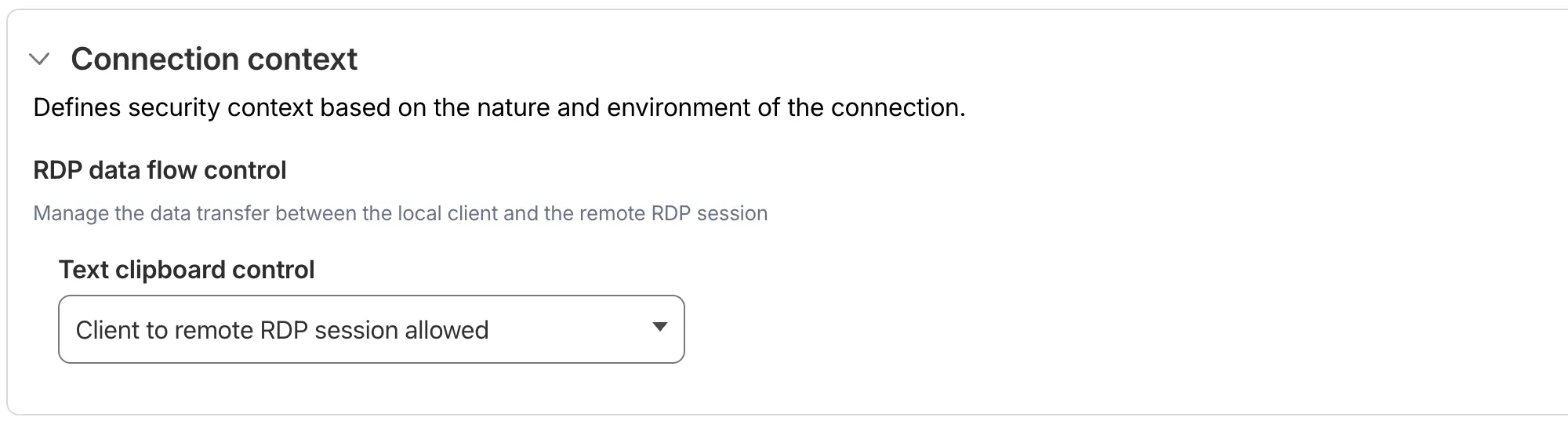
This feature is useful for organizations that support bring-your-own-device (BYOD) policies or third-party contractors using unmanaged devices. By restricting clipboard access, you can prevent sensitive data from being transferred out of the remote session to a user's personal device.
Clipboard controls are configured per policy within your Access application. For each policy, you can independently allow or deny:
- Copy from local client to remote RDP session — Users can copy/paste text from their local machine into the browser-based RDP session.
- Copy from remote RDP session to local client — Users can copy/paste text from the browser-based RDP session to their local machine.
By default, both directions are denied for new policies. For existing Access applications created before this feature was available, clipboard access remains enabled to preserve backwards compatibility.
When a user attempts a restricted clipboard action, the clipboard content is replaced with an error message informing them that the action is not allowed.
For more information, refer to Clipboard controls for browser-based RDP.
-
MCP server portals now supports Logpush integration. You can automatically export MCP server portal activity logs to third-party storage destinations or security information and event management (SIEM) tools for analysis and auditing.
The MCP server portal logs dataset includes fields such as:
Datetime— Timestamp of the requestPortalID/PortalAUD— Portal identifiersServerID/ServerURL— Upstream MCP server detailsMethod— JSON-RPC method (for example,tools/call,prompts/get,resources/read)ToolCallName/PromptGetName/ResourceReadURI— Method-specific identifiersUserID/UserEmail— Authenticated user informationSuccess/Error— Request outcomeServerResponseDurationMs— Response time from upstream server
For the complete field reference, refer to MCP portal logs.
To configure Logpush for MCP server portal logs, refer to Logpush integration.
Gateway Protocol Detection now supports seven additional protocols in beta:
Protocol Notes IMAP Internet Message Access Protocol — email retrieval POP3 Post Office Protocol v3 — email retrieval SMTP Simple Mail Transfer Protocol — email sending MYSQL MySQL database wire protocol RSYNC-DAEMON rsync daemon protocol LDAP Lightweight Directory Access Protocol NTP Network Time Protocol These protocols join the existing set of detected protocols (HTTP, HTTP2, SSH, TLS, DCERPC, MQTT, and TPKT) and can be used with the Detected Protocol selector in Network policies to identify and filter traffic based on the application-layer protocol, without relying on port-based identification.
If protocol detection is enabled on your account, these protocols will automatically be logged when detected in your Gateway network traffic.
For more information on using Protocol Detection, refer to the Protocol detection documentation.
A new GA release for the Windows WARP client is now available on the stable releases downloads page.
This release contains minor fixes, improvements, and new features.
Changes and improvements
- Improvements to multi-user mode. Fixed an issue where when switching from a pre-login registration to a user registration, Mobile Device Management (MDM) configuration association could be lost.
- Added a new feature to manage NetBIOS over TCP/IP functionality on the Windows client. NetBIOS over TCP/IP on the Windows client is now disabled by default and can be enabled in device profile settings.
- Fixed an issue causing failure of the local network exclusion feature when configured with a timeout of
0. - Improvement for the Windows client certificate posture check to ensure logged results are from checks that run once users log in.
- Improvement for more accurate reporting of device colocation information in the Cloudflare One dashboard.
- Fixed an issue where misconfigured DEX HTTP tests prevented new registrations.
- Fixed an issue causing DNS requests to fail with clients in Traffic and DNS mode.
- Improved service shutdown behavior in cases where the daemon is unresponsive.
Known issues
For Windows 11 24H2 users, Microsoft has confirmed a regression that may lead to performance issues like mouse lag, audio cracking, or other slowdowns. Cloudflare recommends users experiencing these issues upgrade to a minimum Windows 11 24H2 KB5062553 or higher for resolution.
Devices with KB5055523 installed may receive a warning about
Win32/ClickFix.ABAbeing present in the installer. To resolve this false positive, update Microsoft Security Intelligence to version 1.429.19.0 or later.DNS resolution may be broken when the following conditions are all true:
- WARP is in Secure Web Gateway without DNS filtering (tunnel-only) mode.
- A custom DNS server address is configured on the primary network adapter.
- The custom DNS server address on the primary network adapter is changed while WARP is connected.
To work around this issue, reconnect the WARP client by toggling off and back on.
A new GA release for the macOS WARP client is now available on the stable releases downloads page.
This release contains minor fixes and improvements.
Changes and improvements
- Fixed an issue causing failure of the local network exclusion feature when configured with a timeout of
0. - Improvement for more accurate reporting of device colocation information in the Cloudflare One dashboard.
- Fixed an issue with DNS server configuration failures that caused tunnel connection delays.
- Fixed an issue where misconfigured DEX HTTP tests prevented new registrations.
- Fixed an issue causing DNS requests to fail with clients in Traffic and DNS mode.
- Fixed an issue causing failure of the local network exclusion feature when configured with a timeout of
A new GA release for the Linux WARP client is now available on the stable releases downloads page.
This release contains minor fixes and improvements.
WARP client version 2025.8.779.0 introduced an updated public key for Linux packages. The public key must be updated if it was installed before September 12, 2025 to ensure the repository remains functional after December 4, 2025. Instructions to make this update are available at pkg.cloudflareclient.com.
Changes and improvements
- Fixed an issue causing failure of the local network exclusion feature when configured with a timeout of
0. - Improvement for more accurate reporting of device colocation information in the Cloudflare One dashboard.
- Fixed an issue where misconfigured DEX HTTP tests prevented new registrations.
- Fixed issues causing DNS requests to fail with clients in Traffic and DNS mode or DNS only mode.
- Fixed an issue causing failure of the local network exclusion feature when configured with a timeout of
You can now easily understand your SaaS security posture findings and why they were detected with Cloudy Summaries in CASB. This feature integrates Cloudflare's Cloudy AI directly into your CASB Posture Findings to automatically generate clear, plain-language summaries of complex security misconfigurations, third-party app risks, and data exposures.
This allows security teams and IT administrators to drastically reduce triage time by immediately understanding the context, potential impact, and necessary remediation steps for any given finding—without needing to be an expert in every connected SaaS application.
To view a summary, simply navigate to your Posture Findings in the Cloudflare One dashboard (under Cloud and SaaS findings) and open the finding details of a specific instance of a Finding.
Cloudy Summaries are supported on all available integrations, including Microsoft 365, Google Workspace, Salesforce, GitHub, AWS, Slack, and Dropbox. See the full list of supported integrations here.
- Contextual explanations — Quickly understand the specifics of a finding with plain-language summaries detailing exactly what was detected, from publicly shared sensitive files to risky third-party app scopes.
- Clear risk assessment — Instantly grasp the potential security impact of the finding, such as data breach risks, unauthorized account access, or email spoofing vulnerabilities.
- Actionable guidance — Get clear recommendations and next steps on how to effectively remediate the issue and secure your environment.
- Built-in feedback — Help improve future AI summarization accuracy by submitting feedback directly using the thumbs-up and thumbs-down buttons.
- Learn more about managing CASB Posture Findings in Cloudflare.
Cloudy Summaries in CASB are available to all Cloudflare CASB users today.
Cloudflare Tunnel is now available in the main Cloudflare Dashboard at Networking > Tunnels ↗, bringing first-class Tunnel management to developers using Tunnel for securing origin servers.

This new experience provides everything you need to manage Tunnels for public applications, including:
- Full Tunnel lifecycle management: Create, configure, delete, and monitor all your Tunnels in one place.
- Native integrations: View Tunnels by name when configuring DNS records and Workers VPC — no more copy-pasting UUIDs.
- Real-time visibility: Monitor replicas and Tunnel health status directly in the dashboard.
- Routing map: Manage all ingress routes for your Tunnel, including public applications, private hostnames, private CIDRs, and Workers VPC services, from a single interactive interface.
Core Dashboard: Navigate to Networking > Tunnels ↗ to manage Tunnels for:
- Securing origin servers and public applications with CDN, WAF, Load Balancing, and DDoS protection
- Connecting Workers to private services via Workers VPC
Cloudflare One Dashboard: Navigate to Zero Trust > Networks > Connectors ↗ to manage Tunnels for:
- Securing your public applications with Zero Trust access policies
- Connecting users to private applications
- Building a private mesh network
Both dashboards provide complete Tunnel management capabilities — choose based on your primary workflow.
New to Tunnel? Learn how to get started with Cloudflare Tunnel or explore advanced use cases like securing SSH servers or running Tunnels in Kubernetes.
Digital Experience Monitoring (DEX) provides visibility into WARP device connectivity and performance to any internal or external application.
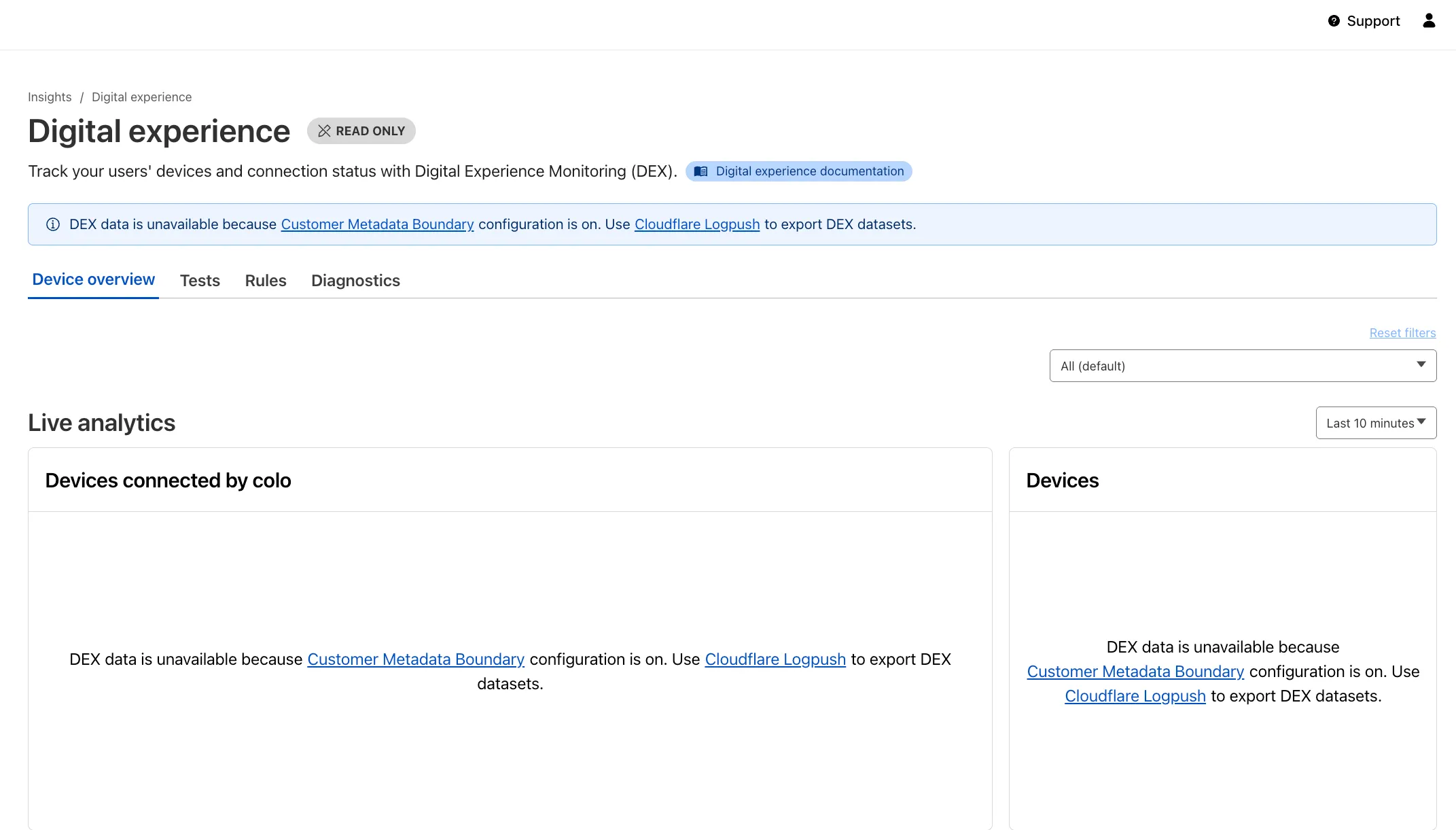
Now, all DEX logs are fully compatible with Cloudflare's Customer Metadata Boundary (CMB) setting for the 'EU' (European Union), which ensures that DEX logs will not be stored outside the 'EU' when the option is configured.
If a Cloudflare One customer using DEX enables CMB 'EU', they will not see any DEX data in the Cloudflare One dashboard. Customers can ingest DEX data via LogPush, and build their own analytics and dashboards.
If a customer enables CMB in their account, they will see the following message in the Digital Experience dashboard: "DEX data is unavailable because Customer Metadata Boundary configuration is on. Use Cloudflare LogPush to export DEX datasets."
A new Allow clientless access setting makes it easier to connect users without a device client to internal applications, without using public DNS.

Previously, to provide clientless access to a private hostname or IP without a published application, you had to create a separate bookmark application pointing to a prefixed Clientless Web Isolation URL (for example,
https://<your-teamname>.cloudflareaccess.com/browser/https://10.0.0.1/). This bookmark was visible to all users in the App Launcher, regardless of whether they had access to the underlying application.Now, you can manage clientless access directly within your private self-hosted application. When Allow clientless access is turned on, users who pass your Access application policies will see a tile in their App Launcher pointing to the prefixed URL. Users must have remote browser permissions to open the link.
You can now assign Access policies to bookmark applications. This lets you control which users see a bookmark in the App Launcher based on identity, device posture, and other policy rules.
Previously, bookmark applications were visible to all users in your organization. With policy support, you can now:
- Tailor the App Launcher to each user — Users only see the applications they have access to, reducing clutter and preventing accidental clicks on irrelevant resources.
- Restrict visibility of sensitive bookmarks — Limit who can view bookmarks to internal tools or partner resources based on group membership, identity provider, or device posture.
Bookmarks support all Access policy configurations except purpose justification, temporary authentication, and application isolation. If no policy is assigned, the bookmark remains visible to all users (maintaining backwards compatibility).
For more information, refer to Add bookmarks.
We are updating naming related to some of our Networking products to better clarify their place in the Zero Trust and Secure Access Service Edge (SASE) journey.
We are retiring some older brand names in favor of names that describe exactly what the products do within your network. We are doing this to help customers build better, clearer mental models for comprehensive SASE architecture delivered on Cloudflare.
- Magic WAN → Cloudflare WAN
- Magic WAN IPsec → Cloudflare IPsec
- Magic WAN GRE → Cloudflare GRE
- Magic WAN Connector → Cloudflare One Appliance
- Magic Firewall → Cloudflare Network Firewall
- Magic Network Monitoring → Network Flow
- Magic Cloud Networking → Cloudflare One Multi-cloud Networking
No action is required by you — all functionality, existing configurations, and billing will remain exactly the same.
For more information, visit the Cloudflare One documentation.
Fine-grained permissions for Access policies and Access service tokens are available. These new resource-scoped roles expand the existing RBAC model, enabling administrators to grant permissions scoped to individual resources.
- Cloudflare Access policy admin: Can edit a specific Access policy in an account.
- Cloudflare Access service token admin: Can edit a specific Access service token in an account.
These roles complement the existing resource-scoped roles for Access applications, identity providers, and infrastructure targets.
For more information:
Cloudflare WAN now displays your Anycast IP addresses directly in the dashboard when you configure IPsec or GRE tunnels.
Previously, customers received their Anycast IPs during onboarding or had to retrieve them with an API call. The dashboard now pre-loads these addresses, reducing setup friction and preventing configuration errors.
No action is required. All Cloudflare WAN customers can see their Anycast IPs in the tunnel configuration form automatically.
For more information, refer to Configure tunnel endpoints.