
Changelog
New updates and improvements at Cloudflare.

Starting today, everyone can opt in to a refreshed DNS records page in the Cloudflare dashboard. Over the coming weeks, the new experience will become the default for Free plan users first, followed by paid plans.
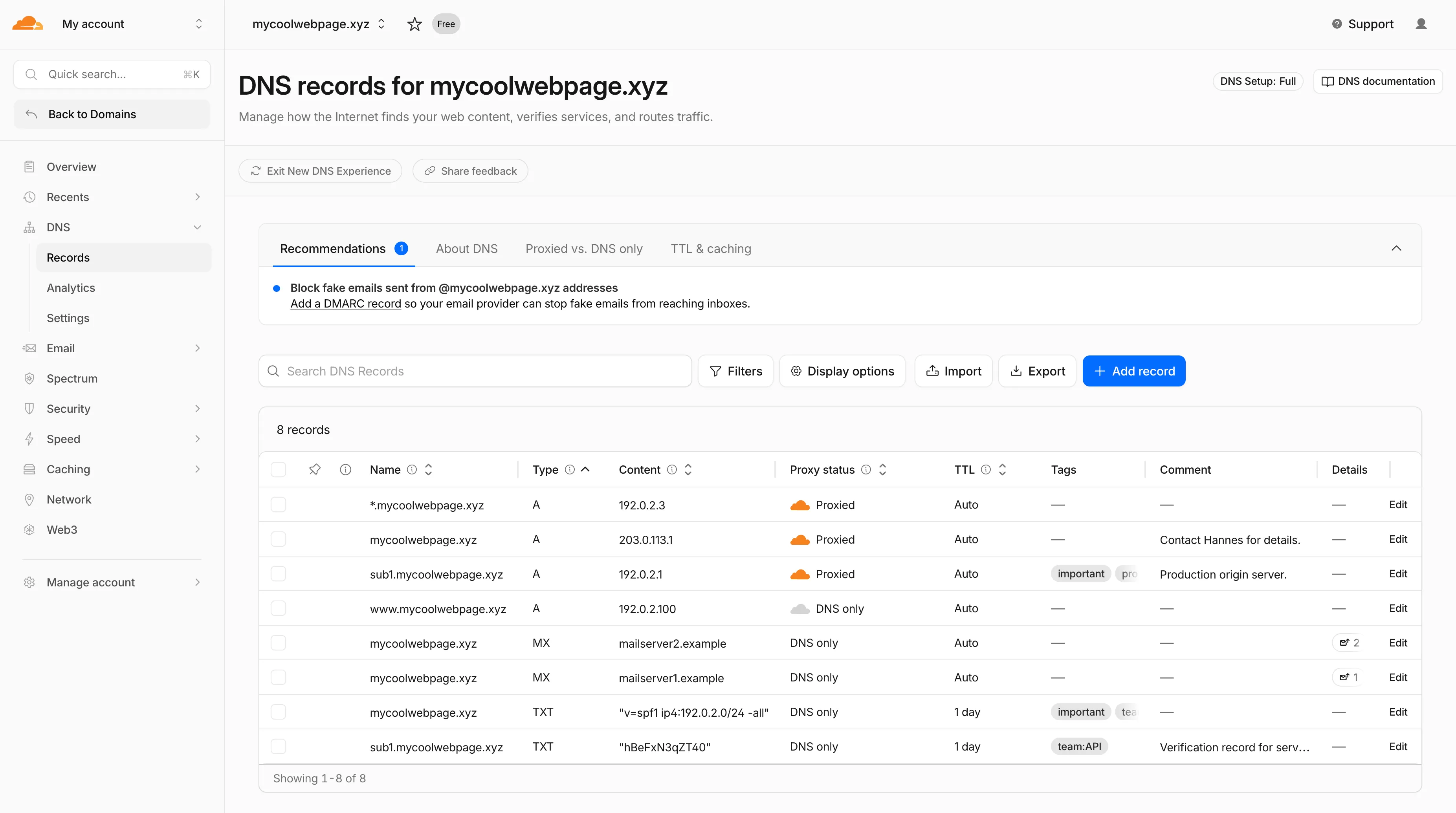
- Better table experience: resizable and hideable columns, row pinning, advanced filters with logical operators (AND/OR), configurable pagination, and expanded input fields so long values are no longer cut off.
- First-class mobile experience: responsive layout with a touch-friendly, card-based UI and compact controls for small screens.
- DNS quick reference: bite-sized explainers for DNS, proxy status, and TTL, available directly in the product to help users configure records without leaving the page.
- Modern frontend: a refactor onto Cloudflare's new UI framework that improves performance and lays the foundation for future improvements.

Dates are subject to change based on feedback received during the rollout.
- 20 May - 05 June: ramped rollout to Free, then Pro and Business plans.
- 08 June - 03 July: ramped rollout to Enterprise plans.
Once the new experience is turned on for your account, look for the feedback link at the top of the DNS records page in the Cloudflare dashboard and let us know what you think. Your input helps us prioritize the next round of improvements.
The
/cdn-cgi/rumbeacon endpoint now returns405 Method Not Allowedfor non-POST requests instead of404 Not Found. The response includes anAllow: POST, OPTIONSheader per RFC 9110 §15.5.6 ↗.Previously, sending a
GETor other non-POST request to this endpoint returned a404, which was misleading because it suggested the endpoint did not exist. The new405response clearly indicates that the endpoint exists but only acceptsPOSTrequests.The Web Analytics beacon (
beacon.min.js) already usesPOSTfor all metric submissions, so this change does not affect normal beacon operation.OPTIONSrequests for CORS preflight continue to work as before.For more information, refer to the Web Analytics FAQ.
Cloudflare's cache now runs on a new proxy built on Pingora ↗, the Rust-based framework that already serves a significant portion of Cloudflare's network traffic. The new proxy is faster, more memory-safe, and designed to evolve our cache architecture. It delivers immediate performance improvements and enables new caching capabilities.
- Lower latency: The new proxy reduces per-request overhead through improved connection reuse.
- Reduced cache MISSes: Enhanced cache retention improves origin offload.
- Better RFC compliance: Caching behavior more closely follows HTTP caching standards.
- Foundation for future features: The new architecture enables upcoming improvements to cache functionality and efficiency.
- Asynchronous
stale-while-revalidate: Every request returns stale content immediately while revalidation happens in the background, instead of the first request after expiry blocking on the origin. Refer to the asynchronousstale-while-revalidatechangelog for details. - Unbuffered bypass by default: Responses that bypass cache are streamed directly to the client without buffering, reducing time-to-first-byte for uncacheable content.
The new architecture introduces the following behavioral changes to improve RFC compliance and correctness:
Vary: *results in cache bypass: According to RFC 9110 Section 12.5.5 ↗, aVaryheader value of*indicates the response varies on factors beyond request headers and must not be served from cache. Cloudflare now bypasses cache for these responses instead of storing them.Set-Cookiestripped on MISS and EXPIRED: For cacheable assets,Set-Cookieis now stripped on MISS and EXPIRED responses, not only on HITs.- Floating-point TTL values: Floating-point time-to-live values (for example,
max-age=1.5) are rounded down to the nearest integer instead of being rejected as invalid.
A deeper look at the new cache proxy is coming soon to the Cloudflare blog ↗. For background on the underlying framework, read:
Shared dictionaries (RFC 9842 ↗) let an origin compress a response against a previous version of the same resource that the browser already has cached, so only the difference between versions travels over the wire. Shared dictionaries passthrough is now in open beta on all plans.
In passthrough mode, Cloudflare:
- Forwards the
Use-As-DictionaryandAvailable-Dictionaryheaders between client and origin without modification. - Treats
dcb(Dictionary-Compressed Brotli) anddcz(Dictionary-Compressed Zstandard) as validContent-Encodingvalues end to end, without recompressing them. - Extends the cache key to vary on
Available-DictionaryandAccept-Encodingso each delta-compressed variant is cached correctly.
Your origin manages the dictionary lifecycle: deciding which assets are dictionaries, attaching
Use-As-Dictionaryheaders, and producing deltas in response toAvailable-Dictionaryrequests. Cloudflare handles the transport and the cache.In internal testing on a 272 KB JavaScript bundle, the asset shrinks from 92.1 KB with Gzip to 2.6 KB with delta Zstandard against the previous version — a 97% reduction over standard compression — with download times improving by 81–89% versus Gzip.
Shared dictionaries work with browsers that advertise
dcbordczinAccept-Encoding. Today, this includes Chrome 130 or later and Edge 130 or later.Turn on passthrough for your zone with a single API call:
Terminal window curl "https://api.cloudflare.com/client/v4/zones/$ZONE_ID/settings/shared_dictionary_mode" \--request PATCH \--header "Authorization: Bearer $CLOUDFLARE_API_TOKEN" \--json '{"value": "passthrough"}'You can also turn it on under Speed > Settings > Content Optimization in the Cloudflare dashboard ↗. For full origin setup instructions and a working test recipe, refer to Shared dictionaries, or try the live demo at canicompress.com ↗.
- Forwards the
Cloudflare Web Analytics now supports Navigation Type reporting and filtering.
This update allows developers and performance analysts to see how users are navigating between pages — whether through a link click or form submission, a page reload, or using the browser's back/forward buttons — and whether a browser cache hit occurred for these behaviors.
Understanding navigation types is critical for optimizing user experience. For example, if a high volume of your traffic consists of "Back-forward" navigations versus "Back-forward Cache", those visitors are not benefiting from the Back/Forward Cache (bfcache) and therefore are experiencing higher load times due to potentially unnecessary network requests.
The same applies for regular "Navigate" entries — where "Navigate Cache", "Navigate Prefetch Cache" and "Prerender" would provide instant document retrieval — and "Reload", where "Reload cache" would be more optimal.
A high volume of "Reload" entries can also indicate a potential stability problem with your website.
By identifying these patterns, you can tune your browser caching strategies to ensure HTML documents are served instantaneously from local caches rather than requiring a roundtrip to the network.
For more information, refer to Navigation Types.
- Monitor Cache Effectiveness: See how often your site is served from the HTTP cache or bfcache.
- Identify Performance Bottlenecks: Filter by the different types to understand performance opportunity of improving browser cache hit ratio.
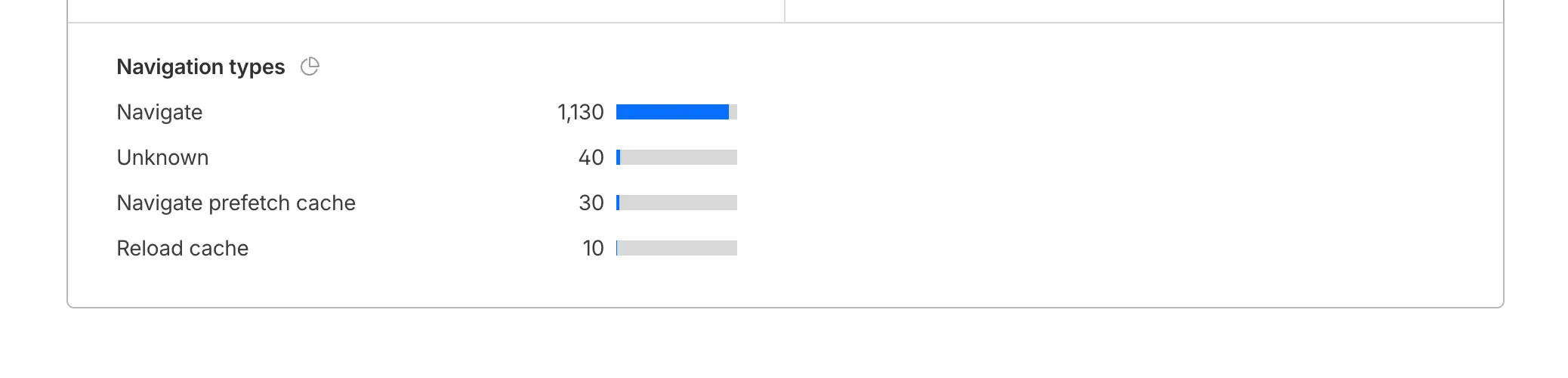
You can now find the Navigation Type dimension in the Web Analytics dashboard. You can filter to include/exclude one or more specific types using "equals", "does not equal", "in", or "not in" matchers.

To check the list of popular navigation types, select Page views on the Web Analytics sidebar and scroll down to the bottom:
You can now disable Cloudflare's reverse proxy across all zones in your account simultaneously using the new
enforce_dns_onlysetting. When enabled, Cloudflare responds to DNS queries for all proxied records with your origin IP addresses instead of Cloudflare's anycast IPs. This account-level kill switch is designed for incident response scenarios where you need to quickly route traffic directly to your origin servers.- Account-level — Affects all zones in the account simultaneously with a single API call.
- Non-destructive — Does not modify your DNS records. Disabling the setting restores normal proxy behavior.
- API-only — Available through the API only, not in the Cloudflare dashboard.
Included: Standard proxied A, AAAA, and CNAME records, Load Balancing records, and records matching Worker routes.
Excluded: Spectrum applications, Cloudflare Tunnel CNAMEs, R2 custom domains, Web3 gateways, and Workers custom domains continue to operate normally.
- Verify your origin servers can handle direct traffic without Cloudflare's caching and filtering.
- Review which origin IPs will become publicly visible through DNS queries.
- Test the API in a staging account before relying on it for incident response.
Available via API to all Cloudflare customers.
For information on how to use it, refer to Enforce DNS-only developer documentation .
Cache Response Rules now work with Version Management. You can version response-phase cache settings and promote them through environments, just like Cache Rules and other supported configurations.
Previously, Cache Response Rules were excluded from zone versioning. Any response-phase rule you created applied globally across all environments with no way to test changes in staging first. Cache Rules already supported versioning, but the response phase, where you modify
Cache-Controldirectives, manage cache tags, and strip headers, did not.Cache Response Rules are now fully integrated with Version Management. You can create or modify response-phase rules within a version, and those changes stay scoped to that version until promoted.
- Safe rollout of cache behavior changes: Test response-phase rules in a staging environment before promoting to production. Catch unintended caching side effects early.
- Parity with Cache Rules: Cache Response Rules now follow the same versioning workflow as Cache Rules, so you can manage all cache configuration through a single promotion pipeline.
- Independent environment control: Run different response-phase cache settings per environment. For example, strip
Set-Cookieheaders in staging to validate cacheability without affecting production traffic.
Configure Cache Response Rules in the Cloudflare dashboard ↗ under Caching > Cache Rules, or via the Rulesets API. For more details, refer to the Cache Response Rules documentation and the Version Management documentation.
You can now achieve higher cache HIT rates and reduce origin load for origins hosted on public cloud providers with Smart Tiered Cache. By setting a cloud region hint for your origin, Cloudflare selects the optimal upper-tier data center for that cloud region, funneling all cache MISSes through a single location close to your origin.
Previously, Smart Tiered Cache could not reliably select an optimal upper tier for origins behind anycast or regional unicast networks commonly used by cloud providers. Origins on AWS, GCP, Azure, and Oracle Cloud would fall back to a multi-upper-tier topology, resulting in lower cache HIT rates and more requests reaching your origin.
Set a cloud region hint (for example,
aws/us-east-1orgcp/europe-west1) for your origin IP or hostname. Smart Tiered Cache uses this hint along with real-time latency data to select a primary upper tier close to your cloud region, plus a fallback in a different location for resilience.- Supported providers: AWS, GCP, Azure, and Oracle Cloud.
- All plans: Available on Free, Pro, Business, and Enterprise plans at no additional cost.
- Dashboard and API: Configure from Caching > Tiered Cache > Origin Configuration, or use the API and Terraform.
To get started, enable Smart Tiered Cache and set a cloud region hint for your origin in the Tiered Cache settings.
You can now manage mutual TLS (mTLS) and Bring Your Own Certificate Authority (BYO CA) configurations directly from the Cloudflare dashboard — no API required.
Previously, these advanced workflows required the Cloudflare API. The following are now available in the dashboard:
- AOP certificate management — Upload and manage your own certificate authorities for Authenticated Origin Pulls (AOP) directly from the dashboard.
- BYO Client mTLS certificate management — Upload and manage your own CA certificates for client mTLS enforcement without needing API access.
- CDN hostname to client mTLS certificate mapping — Associate client mTLS certificates with specific hostnames directly from the dashboard.
Two new fields are now available in rule expressions that surface Layer 4 transport telemetry from the client connection. Together with the existing
cf.timings.client_tcp_rtt_msecfield, these fields give you a complete picture of connection quality for both TCP and QUIC traffic — enabling transport-aware rules without requiring any client-side changes.Previously, QUIC RTT and delivery rate data was only available via the
Server-Timing: cfL4response header. These new fields make the same data available directly in rule expressions, so you can use them in Transform Rules, WAF Custom Rules, and other phases that support dynamic fields.Field Type Description cf.timings.client_quic_rtt_msecInteger The smoothed QUIC round-trip time (RTT) between Cloudflare and the client in milliseconds. Only populated for QUIC (HTTP/3) connections. Returns 0for TCP connections.cf.edge.l4.delivery_rateInteger The most recent data delivery rate estimate for the client connection, in bytes per second. Returns 0when L4 statistics are not available for the request.Use a request header transform rule to tag requests from high-latency connections, so your origin can serve a lighter page variant:
Rule expression:
cf.timings.client_tcp_rtt_msec > 200 or cf.timings.client_quic_rtt_msec > 200Header modifications:
Operation Header name Value Set X-High-Latencytruecf.edge.l4.delivery_rate > 0 and cf.edge.l4.delivery_rate < 100000For more information, refer to Request Header Transform Rules and the fields reference.
Internal DNS is now in open beta.
Internal DNS is bundled as a part of Cloudflare Gateway and is now available to every Enterprise customer with one of the following subscriptions:
- Cloudflare Zero Trust Enterprise
- Cloudflare Gateway Enterprise
To learn more and get started, refer to the Internal DNS documentation.
Cloudflare now exposes four new fields in the Transform Rules phase that encode client certificate data in RFC 9440 ↗ format. Previously, forwarding client certificate information to your origin required custom parsing of PEM-encoded fields or non-standard HTTP header formats. These new fields produce output in the standardized
Client-CertandClient-Cert-Chainheader format defined by RFC 9440, so your origin can consume them directly without any additional decoding logic.Each certificate is DER-encoded, Base64-encoded, and wrapped in colons. For example,
:MIIDsT...Vw==:. A chain of intermediates is expressed as a comma-separated list of such values.Field Type Description cf.tls_client_auth.cert_rfc9440String The client leaf certificate in RFC 9440 format. Empty if no client certificate was presented. cf.tls_client_auth.cert_rfc9440_too_largeBoolean trueif the leaf certificate exceeded 10 KB and was omitted. In practice this will almost always befalse.cf.tls_client_auth.cert_chain_rfc9440String The intermediate certificate chain in RFC 9440 format as a comma-separated list. Empty if no intermediate certificates were sent or if the chain exceeded 16 KB. cf.tls_client_auth.cert_chain_rfc9440_too_largeBoolean trueif the intermediate chain exceeded 16 KB and was omitted.The chain encoding follows the same ordering as the TLS handshake: the certificate closest to the leaf appears first, working up toward the trust anchor. The root certificate is not included.
Add a request header transform rule to set the
Client-CertandClient-Cert-Chainheaders on requests forwarded to your origin server. For example, to forward headers for verified, non-revoked certificates:Rule expression:
cf.tls_client_auth.cert_verified and not cf.tls_client_auth.cert_revokedHeader modifications:
Operation Header name Value Set Client-Certcf.tls_client_auth.cert_rfc9440Set Client-Cert-Chaincf.tls_client_auth.cert_chain_rfc9440To get the most out of these fields, upload your client CA certificate to Cloudflare so that Cloudflare validates the client certificate at the edge and populates
cf.tls_client_auth.cert_verifiedandcf.tls_client_auth.cert_revoked.For more information, refer to Mutual TLS authentication, Request Header Transform Rules, and the fields reference.
You can now control how Cloudflare handles origin responses without changing your origin. Cache Response Rules let you modify
Cache-Controldirectives, manage cache tags, and strip headers likeSet-Cookiefrom origin responses before they reach Cloudflare's cache. Whether traffic is cached or passed through dynamically, these rules give you control over origin response behavior that was previously out of reach.Cache Rules previously only operated on request attributes. Cache Response Rules introduce a new response phase that evaluates origin responses and lets you act on them before caching. You can now:
- Modify
Cache-Controldirectives: Set or remove individual directives likeno-store,no-cache,max-age,s-maxage,stale-while-revalidate,immutable, and more. For example, remove ano-cachedirective your origin sends so Cloudflare can cache the asset, or set ans-maxageto control how long Cloudflare stores it. - Set a different browser
Cache-Control: Send a differentCache-Controlheader downstream to browsers and other clients than what Cloudflare uses internally, giving you independent control over edge and browser caching strategies. - Manage cache tags: Add, set, or remove cache tags on responses, including converting tags from another CDN's header format into Cloudflare's
Cache-Tagheader. This is especially useful if you are migrating from a CDN that uses a different tag header or delimiter. - Strip headers that block caching: Remove
Set-Cookie,ETag, orLast-Modifiedheaders from origin responses before caching, so responses that would otherwise be treated as uncacheable can be stored and served from cache.
- No origin changes required: Fix caching behavior entirely from Cloudflare, even when your origin configuration is locked down or managed by a different team.
- Simpler CDN migration: Match caching behavior from other CDN providers without rewriting your origin. Translate cache tag formats and override directives that do not align with Cloudflare's defaults.
- Native support, fewer workarounds: Functionality that previously required workarounds is now built into Cache Rules with full Tiered Cache compatibility.
- Fine-grained control: Use expressions to match on request and response attributes, then apply precise cache settings per rule. Rules are stackable and composable with existing Cache Rules.
Configure Cache Response Rules in the Cloudflare dashboard ↗ under Caching > Cache Rules, or via the Rulesets API ↗. For more details, refer to the Cache Rules documentation ↗.
- Modify
DNS Analytics is now available for customers with Customer Metadata Boundary (CMB) set to EU. Query your DNS analytics data while keeping metadata stored in the EU region.
This update includes:
- DNS Analytics — Access the same DNS analytics experience for zones in CMB=EU accounts.
- EU data residency — Analytics data is stored and queried from the EU region, meeting data localization requirements.
- DNS Firewall Analytics — DNS Firewall analytics is now supported for CMB=EU customers.
Available to customers with the Data Localization Suite who have Customer Metadata Boundary configured for the EU region.
-
Authoritative DNS: In the Cloudflare dashboard, select your zone and go to the Analytics page.
Go to Analytics -
DNS Firewall: In the Cloudflare dashboard, go to the DNS Firewall Analytics page.
Go to Analytics
For more information, refer to DNS Analytics and DNS Firewall Analytics.
The
cf.timings.worker_msecfield is now available in the Ruleset Engine. This field reports the wall-clock time that a Cloudflare Worker spent handling a request, measured in milliseconds.You can use this field to identify slow Worker executions, detect performance regressions, or build rules that respond differently based on Worker processing time, such as logging requests that exceed a latency threshold.
Field Type Description cf.timings.worker_msecInteger The time spent executing a Cloudflare Worker in milliseconds. Returns 0if no Worker was invoked.Example filter expression:
cf.timings.worker_msec > 500For more information, refer to the Fields reference.
Cloudflare's
stale-while-revalidatesupport is now fully asynchronous. Previously, the first request for a stale (expired) asset in cache had to wait for an origin response, after which that visitor received a REVALIDATED or EXPIRED status. Now, the first request after the asset expires triggers revalidation in the background and immediately receives stale content with an UPDATING status. All following requests also receive stale content with anUPDATINGstatus until the origin responds, after which subsequent requests receive fresh content with aHITstatus.stale-while-revalidateis aCache-Controldirective set by your origin server that allows Cloudflare to serve an expired cached asset while a fresh copy is fetched from the origin.Asynchronous revalidation brings:
- Lower latency: No visitor is waiting for the origin when the asset is already in cache. Every request is served from cache during revalidation.
- Consistent experience: All visitors receive the same cached response during revalidation.
- Reduced error exposure: The first request is no longer vulnerable to origin timeouts or errors. All visitors receive a cached response while revalidation happens in the background.
This change is live for all Free, Pro, and Business zones. Approximately 75% of Enterprise zones have been migrated, with the remaining zones rolling out throughout the quarter.
To use this feature, make sure your origin includes the
stale-while-revalidatedirective in theCache-Controlheader. Refer to the Cache-Control documentation for details.
You can now control how Cloudflare buffers HTTP request and response bodies using two new settings in Configuration Rules.
Controls how Cloudflare buffers HTTP request bodies before forwarding them to your origin server:
Mode Behavior Standard (default) Cloudflare can inspect a prefix of the request body for enabled functionality such as WAF and Bot Management. Full Buffers the entire request body before sending to origin. None No buffering — the request body streams directly to origin without inspection. Controls how Cloudflare buffers HTTP response bodies before forwarding them to the client:
Mode Behavior Standard (default) Cloudflare can inspect a prefix of the response body for enabled functionality. None No buffering — the response body streams directly to the client without inspection. {"action": "set_config","action_parameters": {"request_body_buffering": "standard","response_body_buffering": "none"}}For more information, refer to Configuration Rules.
Cloudflare Rulesets now includes
encode_base64()andsha256()functions, enabling you to generate signed request headers directly in rule expressions. These functions support common patterns like constructing a canonical string from request attributes, computing a SHA256 digest, and Base64-encoding the result.
Function Description Availability encode_base64(input, flags)Encodes a string to Base64 format. Optional flagsparameter:ufor URL-safe encoding,pfor padding (adds=characters to make the output length a multiple of 4, as required by some systems). By default, output is standard Base64 without padding.All plans (in header transform rules) sha256(input)Computes a SHA256 hash of the input string. Requires enablement
Encode a string to Base64 format:
encode_base64("hello world")Returns:
aGVsbG8gd29ybGQEncode a string to Base64 format with padding:
encode_base64("hello world", "p")Returns:
aGVsbG8gd29ybGQ=Perform a URL-safe Base64 encoding of a string:
encode_base64("hello world", "u")Returns:
aGVsbG8gd29ybGQCompute the SHA256 hash of a secret token:
sha256("my-token")Returns a hash that your origin can validate to authenticate requests.
Compute the SHA256 hash of a string and encode the result to Base64 format:
encode_base64(sha256("my-token"))Combines hashing and encoding for systems that expect Base64-encoded signatures.
For more information, refer to the Functions reference.
-
Cloudflare Rulesets now include new functions that enable advanced expression logic for evaluating arrays and maps. These functions allow you to build rules that match against lists of values in request or response headers, enabling use cases like country-based blocking using custom headers.
Function Description split(source, delimiter)Splits a string into an array of strings using the specified delimiter. join(array, delimiter)Joins an array of strings into a single string using the specified delimiter. has_key(map, key)Returns trueif the specified key exists in the map.has_value(map, value)Returns trueif the specified value exists in the map.
Check if a country code exists in a header list:
has_value(split(http.response.headers["x-allow-country"][0], ","), ip.src.country)Check if a specific header key exists:
has_key(http.request.headers, "x-custom-header")Join array values for logging or comparison:
join(http.request.headers.names, ", ")For more information, refer to the Functions reference.
The
ip.src.metro_codefield in the Ruleset Engine is now populated with DMA (Designated Market Area) data.You can use this field to build rules that target traffic based on geographic market areas, enabling more granular location-based policies for your applications.
Field Type Description ip.src.metro_codeString | null The metro code (DMA) of the incoming request's IP address. Returns the designated market area code for the client's location. Example filter expression:
ip.src.metro_code eq "501"For more information, refer to the Fields reference.
You can now review detailed audit logs for cache purge events, giving you visibility into what purge requests were sent, what they contained, and by whom. Audit your purge requests via the Dashboard or API for all purge methods:
- Purge everything
- List of prefixes
- List of tags
- List of hosts
- List of files
The detailed audit payload is visible within the Cloudflare Dashboard (under Manage Account > Audit Logs) and via the API. Below is an example of the Audit Logs v2 payload structure:
{"action": {"result": "success","type": "create"},"actor": {"id": "1234567890abcdef","email": "user@example.com","type": "user"},"resource": {"product": "purge_cache","request": {"files": ["https://example.com/images/logo.png","https://example.com/css/styles.css"]}},"zone": {"id": "023e105f4ecef8ad9ca31a8372d0c353","name": "example.com"}}To get started, refer to the Audit Logs documentation.
You can now see the exact cache key generated for any request directly in Cloudflare Trace. This visibility helps you troubleshoot cache hits and misses, and verify that your Custom Cache Keys — configured via Cache Rules or Page Rules — are working as intended.
Previously, diagnosing caching behavior required inferring the key from configuration settings. Now, you can confirm that your custom logic for headers, query strings, and device types is correctly applied.
Access Trace via the dashboard or API, either manually for ad-hoc debugging or automated as part of your quality-of-service monitoring.
If you have a Cache Rule that segments content based on a specific cookie (for example,
user_region), run a Trace with that cookie present to confirm theuser_regionvalue appears in the resulting cache key.The Trace response includes the cache key in the
cacheobject:{"step_name": "request","type": "cache","matched": true,"public_name": "Cache Parameters","cache": {"key": {"zone_id": "023e105f4ecef8ad9ca31a8372d0c353","scheme": "https","host": "example.com","uri": "/images/hero.jpg"},"key_string": "023e105f4ecef8ad9ca31a8372d0c353::::https://example.com/images/hero.jpg:::::"}}To learn more, refer to the Trace documentation and our guide on Custom Cache Keys.
-
Cloudflare now provides two new request fields in the Ruleset engine that let you make decisions based on whether a request used TCP and the measured TCP round-trip time between the client and Cloudflare. These fields help you understand protocol usage across your traffic and build policies that respond to network performance. For example, you can distinguish TCP from QUIC traffic or route high latency requests to alternative origins when needed.
Field Type Description cf.edge.client_tcpBoolean Indicates whether the request used TCP. A value of true means the client connected using TCP instead of QUIC. cf.timings.client_tcp_rtt_msecNumber Reports the smoothed TCP round-trip time between the client and Cloudflare in milliseconds. For example, a value of 20 indicates roughly twenty milliseconds of RTT. Example filter expression:
cf.edge.client_tcp && cf.timings.client_tcp_rtt_msec < 100More information can be found in the Rules language fields reference.
Cloudflare Load Balancing now supports Monitor Groups, a powerful new way to combine multiple health monitors into a single, logical group. This allows you to create sophisticated health checks that more accurately reflect the true availability of your applications by assessing multiple services at once.
With Monitor Groups, you can ensure that all critical components of an application are healthy before sending traffic to an origin pool, enabling smarter failover decisions and greater resilience. This feature is now available via the API for customers with an Enterprise Load Balancing subscription.
- Combine Multiple Monitors: Group different health monitors (for example, HTTP, TCP) that check various application components, like a primary API gateway and a specific
/loginservice. - Isolate Monitors for Observation: Mark a monitor as "monitoring only" to receive alerts and data without it affecting a pool's health status or traffic steering. This is perfect for testing new checks or observing non-critical dependencies.
- Improve Steering Intelligence: Latency for Dynamic Steering is automatically averaged across all active monitors in a group, providing a more holistic view of an origin's performance.
This enhancement is ideal for complex, multi-service applications where the health of one component depends on another. By aggregating health signals, Monitor Groups provide a more accurate and comprehensive assessment of your application's true status.
For detailed information and API configuration guides, please visit our developer documentation for Monitor Groups.
- Combine Multiple Monitors: Group different health monitors (for example, HTTP, TCP) that check various application components, like a primary API gateway and a specific
-
Access GraphQL-powered DNS Firewall analytics directly in the Cloudflare dashboard.
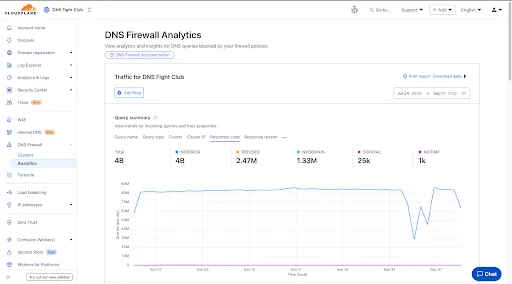
- Query summary: Describes trends over time, segmented by dimensions.
- Query statistics: Describes totals, cached/uncached queries, and processing/response times.
- DNS queries by data center: Describes global view and the top 10 data centers.
- Top query statistics: Shows a breakdown by key dimensions, with search and expand options (up to top 100 items).
Additional features:
- Apply filters and time ranges once. Changes reflect across all panels.
- Filter by dimensions like query name, query type, cluster, data center, protocol (UDP/TCP), IP version, response code/reason, and more.
- Access up to 62 days of historical data with flexible intervals.
Available to all DNS Firewall customers as part of their existing subscription.
-
In the Cloudflare dashboard, go to the DNS Firewall page.
Go to Analytics -
Refer to the DNS Firewall Analytics to learn more.