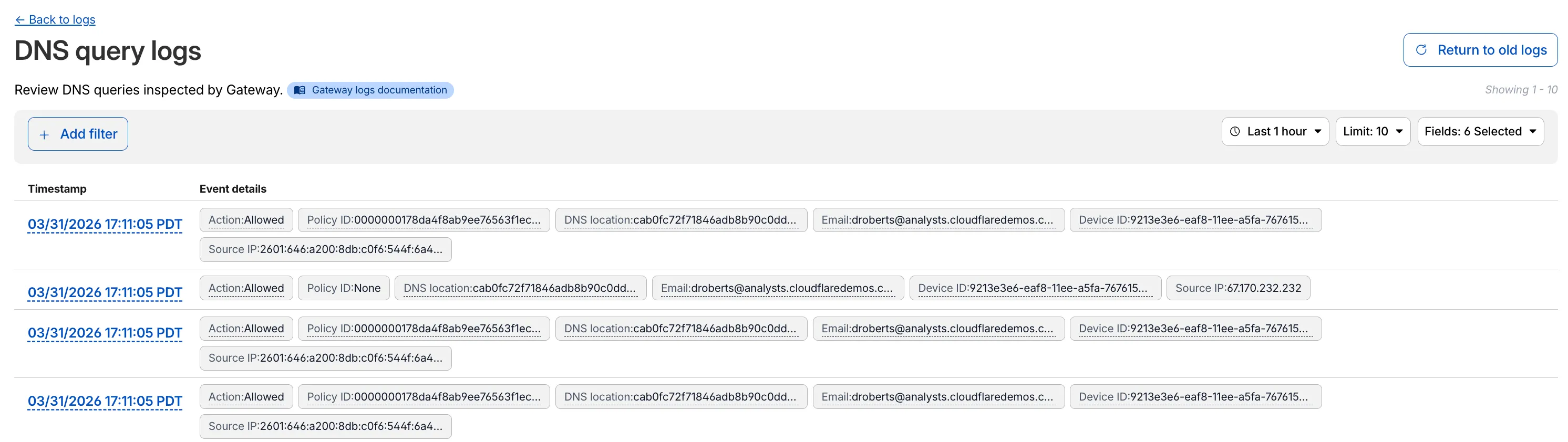
Access authentication logs and Gateway activity logs (DNS, Network, and HTTP) now feature a refreshed user interface that gives you more flexibility when viewing and analyzing your logs.

The updated UI includes:
- Filter by field - Select any field value to add it as a filter and narrow down your results.
- Customizable fields - Choose which fields to display in the log table. Querying for fewer fields improves log loading performance.
- View details - Select a timestamp to view the full details of a log entry.
- Switch to classic view - Return to the previous log viewer interface if needed.
For more information, refer to Access authentication logs and Gateway activity logs.
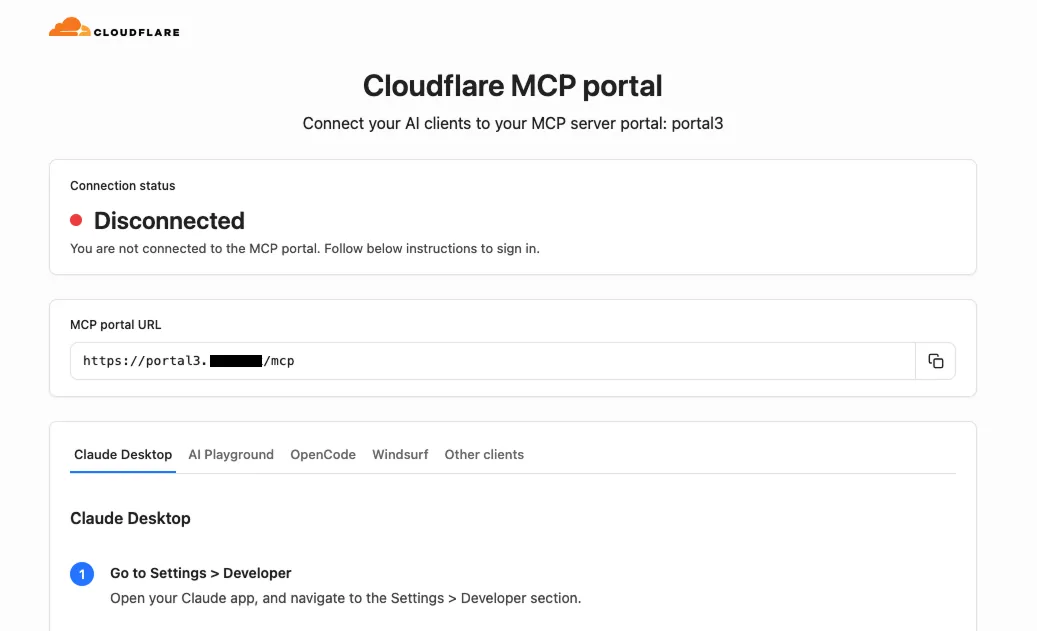
MCP server portals can now route traffic through Cloudflare Gateway for richer HTTP request logging and data loss prevention (DLP) scanning.
When Gateway routing is turned on, portal traffic appears in your Gateway HTTP logs. You can create Gateway HTTP policies with DLP profiles to detect and block sensitive data sent to upstream MCP servers.
To enable Gateway routing, go to Access controls > AI controls, edit the portal, and turn on Route traffic through Cloudflare Gateway under Basic information.

For more details, refer to Route traffic through Gateway.
You can now use user risk scores in your Access policies. The new User Risk Score selector allows you to create Access policies that respond to user behavior patterns detected by Cloudflare's risk scoring system, including impossible travel, high DLP policy matches, and more.
For more information, refer to Use risk scores in Access policies.
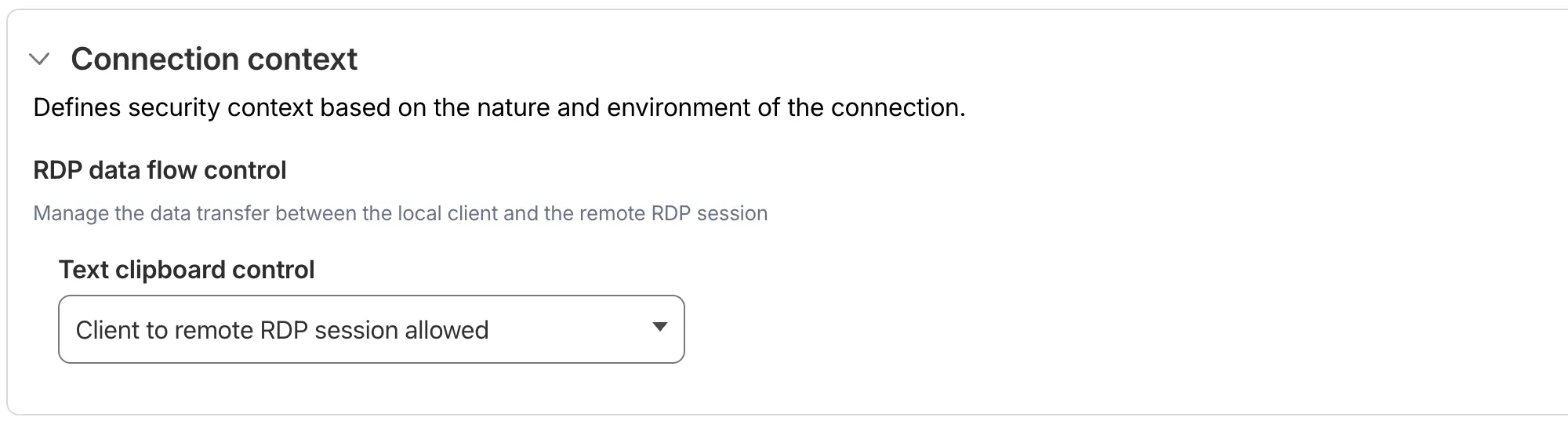
You can now configure clipboard controls for browser-based RDP with Cloudflare Access. Clipboard controls allow administrators to restrict whether users can copy or paste text between their local machine and the remote Windows server.

This feature is useful for organizations that support bring-your-own-device (BYOD) policies or third-party contractors using unmanaged devices. By restricting clipboard access, you can prevent sensitive data from being transferred out of the remote session to a user's personal device.
Clipboard controls are configured per policy within your Access application. For each policy, you can independently allow or deny:
- Copy from local client to remote RDP session — Users can copy/paste text from their local machine into the browser-based RDP session.
- Copy from remote RDP session to local client — Users can copy/paste text from the browser-based RDP session to their local machine.
By default, both directions are denied for new policies. For existing Access applications created before this feature was available, clipboard access remains enabled to preserve backwards compatibility.
When a user attempts a restricted clipboard action, the clipboard content is replaced with an error message informing them that the action is not allowed.
For more information, refer to Clipboard controls for browser-based RDP.
-
MCP server portals now supports Logpush integration. You can automatically export MCP server portal activity logs to third-party storage destinations or security information and event management (SIEM) tools for analysis and auditing.
The MCP server portal logs dataset includes fields such as:
Datetime— Timestamp of the requestPortalID/PortalAUD— Portal identifiersServerID/ServerURL— Upstream MCP server detailsMethod— JSON-RPC method (for example,tools/call,prompts/get,resources/read)ToolCallName/PromptGetName/ResourceReadURI— Method-specific identifiersUserID/UserEmail— Authenticated user informationSuccess/Error— Request outcomeServerResponseDurationMs— Response time from upstream server
For the complete field reference, refer to MCP portal logs.
To configure Logpush for MCP server portal logs, refer to Logpush integration.
A new Allow clientless access setting makes it easier to connect users without a device client to internal applications, without using public DNS.

Previously, to provide clientless access to a private hostname or IP without a published application, you had to create a separate bookmark application pointing to a prefixed Clientless Web Isolation URL (for example,
https://<your-teamname>.cloudflareaccess.com/browser/https://10.0.0.1/). This bookmark was visible to all users in the App Launcher, regardless of whether they had access to the underlying application.Now, you can manage clientless access directly within your private self-hosted application. When Allow clientless access is turned on, users who pass your Access application policies will see a tile in their App Launcher pointing to the prefixed URL. Users must have remote browser permissions to open the link.
You can now assign Access policies to bookmark applications. This lets you control which users see a bookmark in the App Launcher based on identity, device posture, and other policy rules.
Previously, bookmark applications were visible to all users in your organization. With policy support, you can now:
- Tailor the App Launcher to each user — Users only see the applications they have access to, reducing clutter and preventing accidental clicks on irrelevant resources.
- Restrict visibility of sensitive bookmarks — Limit who can view bookmarks to internal tools or partner resources based on group membership, identity provider, or device posture.
Bookmarks support all Access policy configurations except purpose justification, temporary authentication, and application isolation. If no policy is assigned, the bookmark remains visible to all users (maintaining backwards compatibility).
For more information, refer to Add bookmarks.
Fine-grained permissions for Access policies and Access service tokens are available. These new resource-scoped roles expand the existing RBAC model, enabling administrators to grant permissions scoped to individual resources.
- Cloudflare Access policy admin: Can edit a specific Access policy in an account.
- Cloudflare Access service token admin: Can edit a specific Access service token in an account.
These roles complement the existing resource-scoped roles for Access applications, identity providers, and infrastructure targets.
For more information:
You can now require Cloudflare Access protection for all hostnames in your account. When enabled, traffic to any hostname that does not have a matching Access application is automatically blocked.
This deny-by-default approach prevents accidental exposure of internal resources to the public Internet. If a developer deploys a new application or creates a DNS record without configuring an Access application, the traffic is blocked rather than exposed.

- Blocked by default: Traffic to all hostnames in the account is blocked unless an Access application exists for that hostname.
- Explicit access required: To allow traffic, create an Access application with an Allow or Bypass policy.
- Hostname exemptions: You can exempt specific hostnames from this requirement.
To turn on this feature, refer to Require Access protection.
Three new API token permissions are available for Cloudflare Access, giving you finer-grained control when building automations and integrations:
- Access: Organizations Revoke — Grants the ability to revoke user sessions in a Zero Trust organization. Use this permission when you need a token that can terminate active sessions without broader write access to organization settings.
- Access: Population Read — Grants read access to the SCIM users and groups synced from an identity provider to Cloudflare Access. Use this permission for tokens that only need to read synced user and group data.
- Access: Population Write — Grants write access to the SCIM users and groups synced from an identity provider to Cloudflare Access. Use this permission for tokens that need to create or modify synced user and group data.
These permissions are scoped at the account level and can be combined with existing Access permissions.
For a full list of available permissions, refer to API token permissions.
Cloudflare admin activity logs now capture each time a DNS over HTTP (DoH) user is created.
These logs can be viewed from the Cloudflare One dashboard ↗, pulled via the Cloudflare API, and exported through Logpush.
SSH with Cloudflare Access for Infrastructure allows you to use short-lived SSH certificates to eliminate SSH key management and reduce security risks associated with lost or stolen keys.
Previously, users had to generate this certificate by using the Cloudflare API ↗ directly. With this update, you can now create and manage this certificate in the Cloudflare One dashboard ↗ from the Access controls > Service credentials page.

For more details, refer to Generate a Cloudflare SSH CA.
Cloudflare Access for private hostname applications can now secure traffic on all ports and protocols.
Previously, applying Zero Trust policies to private applications required the application to use HTTPS on port
443and support Server Name Indicator (SNI).This update removes that limitation. As long as the application is reachable via a Cloudflare off-ramp, you can now enforce your critical security controls — like single sign-on (SSO), MFA, device posture, and variable session lengths — to any private application. This allows you to extend Zero Trust security to services like SSH, RDP, internal databases, and other non-HTTPS applications.

For example, you can now create a self-hosted application in Access for
ssh.testapp.localrunning on port22. You can then build a policy that only allows engineers in your organization to connect after they pass an SSO/MFA check and are using a corporate device.This feature is generally available across all plans.
Fine-grained permissions for Access Applications, Identity Providers (IdPs), and Targets is now available in Public Beta. This expands our RBAC model beyond account & zone-scoped roles, enabling administrators to grant permissions scoped to individual resources.
- Access Applications ↗: Grant admin permissions to specific Access Applications.
- Identity Providers ↗: Grant admin permissions to individual Identity Providers.
- Targets ↗: Grant admin rights to specific Targets

For more info:
Browser-based RDP with Cloudflare Access is now generally available for all Cloudflare customers. It enables secure, remote Windows server access without VPNs or RDP clients.
Since we announced our open beta, we've made a few improvements:
- Support for targets with IPv6.
- Support for Magic WAN and WARP Connector as on-ramps.
- More robust error messaging on the login page to help you if you encounter an issue.
- Worldwide keyboard support. Whether your day-to-day is in Portuguese, Chinese, or something in between, your browser-based RDP experience will look and feel exactly like you are using a desktop RDP client.
- Cleaned up some other miscellaneous issues, including but not limited to enhanced support for Entra ID accounts and support for usernames with spaces, quotes, and special characters.
As a refresher, here are some benefits browser-based RDP provides:
- Control how users authenticate to internal RDP resources with single sign-on (SSO), multi-factor authentication (MFA), and granular access policies.
- Record who is accessing which servers and when to support regulatory compliance requirements and to gain greater visibility in the event of a security event.
- Eliminate the need to install and manage software on user devices. You will only need a web browser.
- Reduce your attack surface by keeping your RDP servers off the public Internet and protecting them from common threats like credential stuffing or brute-force attacks.

To get started, refer to Connect to RDP in a browser.
You can now control who within your organization has access to internal MCP servers, by putting internal MCP servers behind Cloudflare Access.
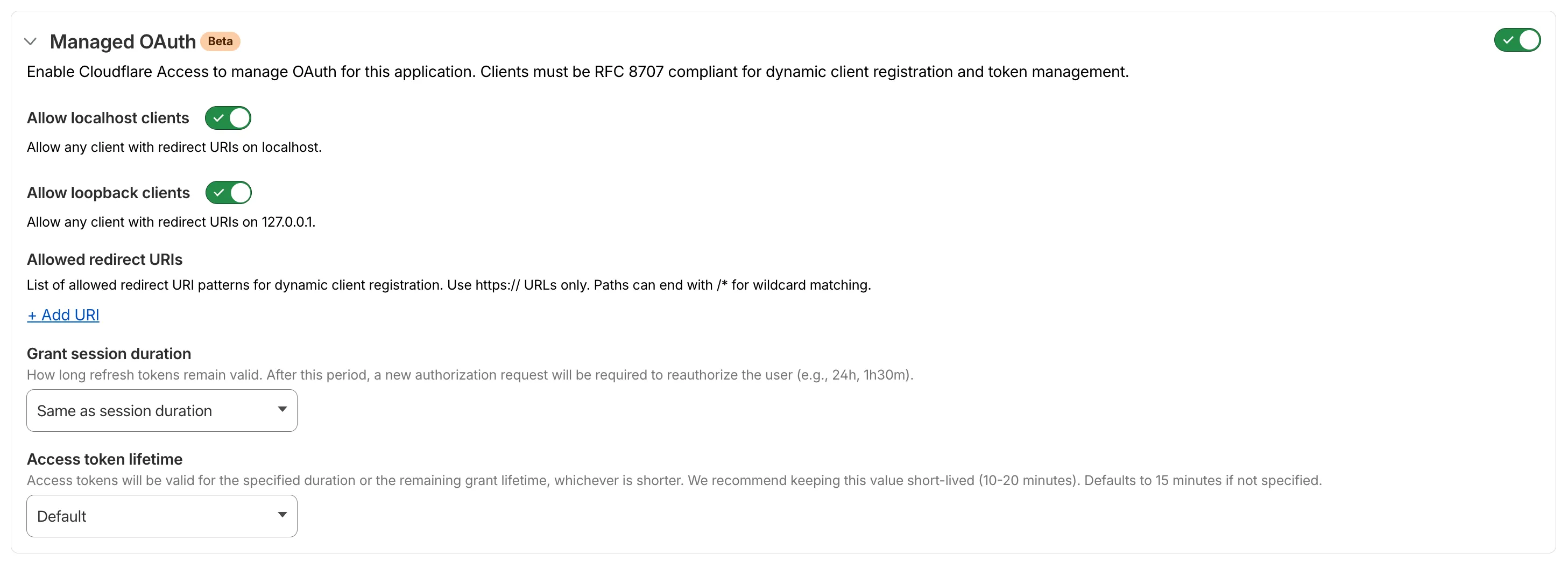
Self-hosted applications in Cloudflare Access now support OAuth for MCP server authentication. This allows Cloudflare to delegate access from any self-hosted application to an MCP server via OAuth. The OAuth access token authorizes the MCP server to make requests to your self-hosted applications on behalf of the authorized user, using that user's specific permissions and scopes.
For example, if you have an MCP server designed for internal use within your organization, you can configure Access policies to ensure that only authorized users can access it, regardless of which MCP client they use. Support for internal, self-hosted MCP servers also works with MCP server portals, allowing you to provide a single MCP endpoint for multiple MCP servers. For more on MCP server portals, read the blog post ↗ on the Cloudflare Blog.

An MCP server portal centralizes multiple Model Context Protocol (MCP) servers onto a single HTTP endpoint. Key benefits include:
- Streamlined access to multiple MCP servers: MCP server portals support both unauthenticated MCP servers as well as MCP servers secured using any third-party or custom OAuth provider. Users log in to the portal URL through Cloudflare Access and are prompted to authenticate separately to each server that requires OAuth.
- Customized tools per portal: Admins can tailor an MCP portal to a particular use case by choosing the specific tools and prompt templates that they want to make available to users through the portal. This allows users to access a curated set of tools and prompts — the less external context exposed to the AI model, the better the AI responses tend to be.
- Observability: Once the user's AI agent is connected to the portal, Cloudflare Access logs the indiviudal requests made using the tools in the portal.
This is available in an open beta for all customers across all plans! For more information check out our blog ↗ for this release.
SSH with Cloudflare Access for Infrastructure now supports SFTP. It is compatible with SFTP clients, such as Cyberduck.
Cloudflare Access logs now support the Customer Metadata Boundary (CMB). If you have configured the CMB for your account, all Access logging will respect that configuration.
Browser-based RDP with Cloudflare Access is now available in open beta for all Cloudflare customers. It enables secure, remote Windows server access without VPNs or RDP clients.
With browser-based RDP, you can:
- Control how users authenticate to internal RDP resources with single sign-on (SSO), multi-factor authentication (MFA), and granular access policies.
- Record who is accessing which servers and when to support regulatory compliance requirements and to gain greater visibility in the event of a security event.
- Eliminate the need to install and manage software on user devices. You will only need a web browser.
- Reduce your attack surface by keeping your RDP servers off the public Internet and protecting them from common threats like credential stuffing or brute-force attacks.

To get started, see Connect to RDP in a browser.
Cloudflare One now offers powerful new analytics dashboards to help customers easily discover available insights into their application access and network activity. These dashboards provide a centralized, intuitive view for understanding user behavior, application usage, and security posture.

Additionally, a new exportable access report is available, allowing customers to quickly view high-level metrics and trends in their application access. A preview of the report is shown below, with more to be found in the report:

Both features are accessible in the Cloudflare Zero Trust dashboard ↗, empowering organizations with better visibility and control.
A new Access Analytics dashboard is now available to all Cloudflare One customers. Customers can apply and combine multiple filters to dive into specific slices of their Access metrics. These filters include:
- Logins granted and denied
- Access events by type (SSO, Login, Logout)
- Application name (Salesforce, Jira, Slack, etc.)
- Identity provider (Okta, Google, Microsoft, onetimepin, etc.)
- Users (
chris@cloudflare.com,sally@cloudflare.com,rachel@cloudflare.com, etc.) - Countries (US, CA, UK, FR, BR, CN, etc.)
- Source IP address
- App type (self-hosted, Infrastructure, RDP, etc.)

To access the new overview, log in to your Cloudflare Zero Trust dashboard ↗ and find Analytics in the side navigation bar.
The Access bulk policy tester is now available in the Cloudflare Zero Trust dashboard. The bulk policy tester allows you to simulate Access policies against your entire user base before and after deploying any changes. The policy tester will simulate the configured policy against each user's last seen identity and device posture (if applicable).

Cloudflare Zero Trust SCIM provisioning now has a full audit log of all create, update and delete event from any SCIM Enabled IdP. The SCIM logs support filtering by IdP, Event type, Result and many more fields. This will help with debugging user and group update issues and questions.
SCIM logs can be found on the Zero Trust Dashboard under Logs -> SCIM provisioning.

Access for SaaS applications now include more configuration options to support a wider array of SaaS applications.
SAML and OIDC Field Additions
OIDC apps now include:
- Group Filtering via RegEx
- OIDC Claim mapping from an IdP
- OIDC token lifetime control
- Advanced OIDC auth flows including hybrid and implicit flows

SAML apps now include improved SAML attribute mapping from an IdP.

SAML transformations
SAML identities sent to Access applications can be fully customized using JSONata expressions. This allows admins to configure the precise identity SAML statement sent to a SaaS application.