

AI Search now offers new REST API endpoints for search and chat that use an OpenAI compatible format. This means you can use the familiar
messagesarray structure that works with existing OpenAI SDKs and tools. The messages array also lets you pass previous messages within a session, so the model can maintain context across multiple turns.Endpoint Path Chat Completions POST /accounts/{account_id}/ai-search/instances/{name}/chat/completionsSearch POST /accounts/{account_id}/ai-search/instances/{name}/searchHere is an example request to the Chat Completions endpoint using the new
messagesarray format:Terminal window curl https://api.cloudflare.com/client/v4/accounts/{ACCOUNT_ID}/ai-search/instances/{NAME}/chat/completions \-H "Content-Type: application/json" \-H "Authorization: Bearer {API_TOKEN}" \-d '{"messages": [{"role": "system","content": "You are a helpful documentation assistant."},{"role": "user","content": "How do I get started?"}]}'For more details, refer to the AI Search REST API guide.
If you are using the previous AutoRAG API endpoints (
/autorag/rags/), we recommend migrating to the new endpoints. The previous AutoRAG API endpoints will continue to be fully supported.Refer to the migration guide for step-by-step instructions.
AI Search now supports public endpoints, UI snippets, and MCP, making it easy to add search to your website or connect AI agents.
Public endpoints allow you to expose AI Search capabilities without requiring API authentication. To enable public endpoints:
- Go to AI Search in the Cloudflare dashboard. Go to AI Search
- Select your instance, and turn on Public Endpoint in Settings. For more details, refer to Public endpoint configuration.
UI snippets are pre-built search and chat components you can embed in your website. Visit search.ai.cloudflare.com ↗ to configure and preview components for your AI Search instance.
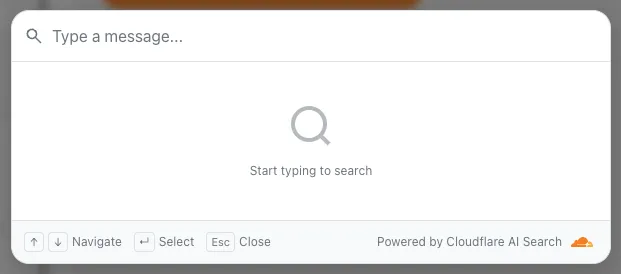
To add a search modal to your page:
<scripttype="module"src="https://<INSTANCE_ID>.search.ai.cloudflare.com/assets/v0.0.25/search-snippet.es.js"></script><search-modal-snippetapi-url="https://<INSTANCE_ID>.search.ai.cloudflare.com/"placeholder="Search..."></search-modal-snippet>For more details, refer to the UI snippets documentation.
The MCP endpoint allows AI agents to search your content via the Model Context Protocol. Connect your MCP client to:
https://<INSTANCE_ID>.search.ai.cloudflare.com/mcpFor more details, refer to the MCP documentation.
AI Search now supports custom metadata filtering, allowing you to define your own metadata fields and filter search results based on attributes like category, version, or any custom field you define.
You can define up to 5 custom metadata fields per AI Search instance. Each field has a name and data type (
text,number, orboolean):Terminal window curl -X POST https://api.cloudflare.com/client/v4/accounts/{ACCOUNT_ID}/ai-search/instances \-H "Content-Type: application/json" \-H "Authorization: Bearer {API_TOKEN}" \-d '{"id": "my-instance","type": "r2","source": "my-bucket","custom_metadata": [{ "field_name": "category", "data_type": "text" },{ "field_name": "version", "data_type": "number" },{ "field_name": "is_public", "data_type": "boolean" }]}'How you attach metadata depends on your data source:
- R2 bucket: Set metadata using S3-compatible custom headers (
x-amz-meta-*) when uploading objects. Refer to R2 custom metadata for examples. - Website: Add
<meta>tags to your HTML pages. Refer to Website custom metadata for details.
Use custom metadata fields in your search queries alongside built-in attributes like
folderandtimestamp:Terminal window curl https://api.cloudflare.com/client/v4/accounts/{ACCOUNT_ID}/ai-search/instances/{NAME}/search \-H "Content-Type: application/json" \-H "Authorization: Bearer {API_TOKEN}" \-d '{"messages": [{"content": "How do I configure authentication?","role": "user"}],"ai_search_options": {"retrieval": {"filters": {"category": "documentation","version": { "$gte": 2.0 }}}}}'Learn more in the metadata filtering documentation.
- R2 bucket: Set metadata using S3-compatible custom headers (
Get your content updates into AI Search faster and avoid a full rescan when you do not need it.
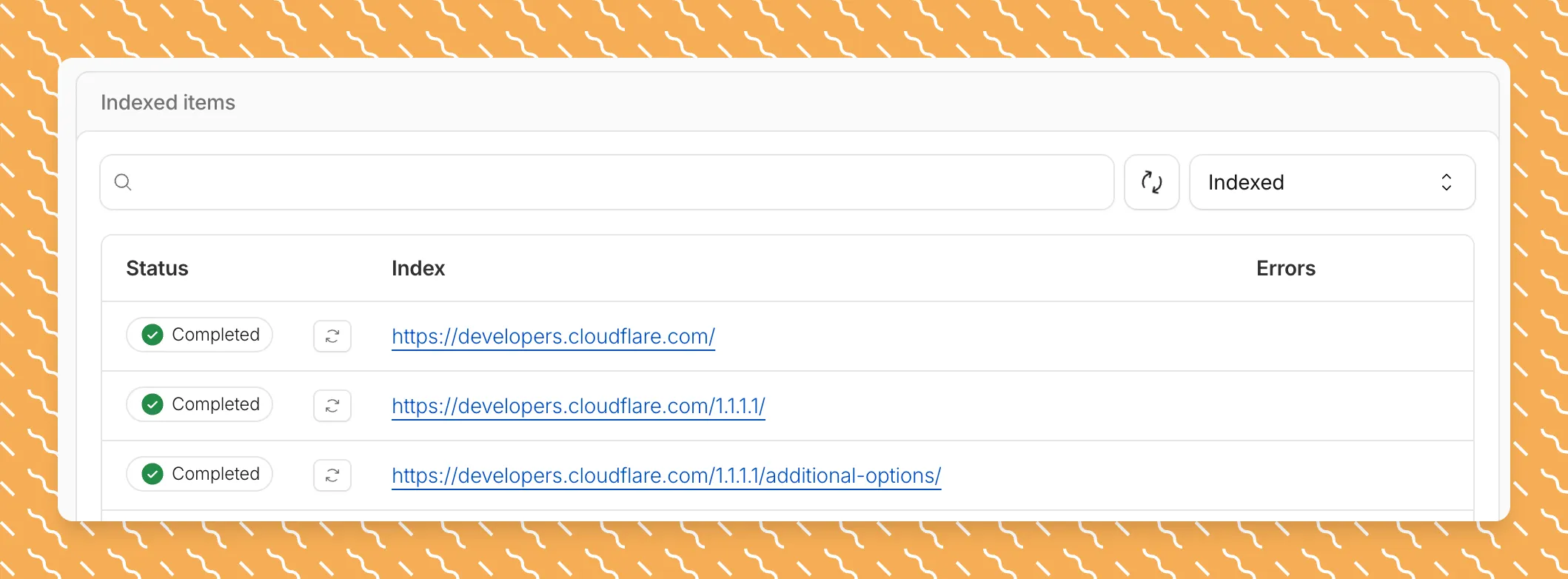
Updated a file or need to retry one that errored? When you know exactly which file changed, you can now reindex it directly instead of rescanning your entire data source.
Go to Overview > Indexed Items and select the sync icon next to any file to reindex it immediately.
By default, AI Search crawls all sitemaps listed in your
robots.txt, up to the maximum files per index limit. If your site has multiple sitemaps but you only want to index a specific set, you can now specify a single sitemap URL to limit what the crawler visits.For example, if your
robots.txtlists bothblog-sitemap.xmlanddocs-sitemap.xml, you can specify justhttps://example.com/docs-sitemap.xmlto index only your documentation.Configure your selection anytime in Settings > Parsing options > Specific sitemaps, then trigger a sync to apply the changes.

Learn more about indexing controls and website crawling configuration.
AI Search now includes path filtering for both website and R2 data sources. You can now control which content gets indexed by defining include and exclude rules for paths.
By controlling what gets indexed, you can improve the relevance and quality of your search results. You can also use path filtering to split a single data source across multiple AI Search instances for specialized search experiences.
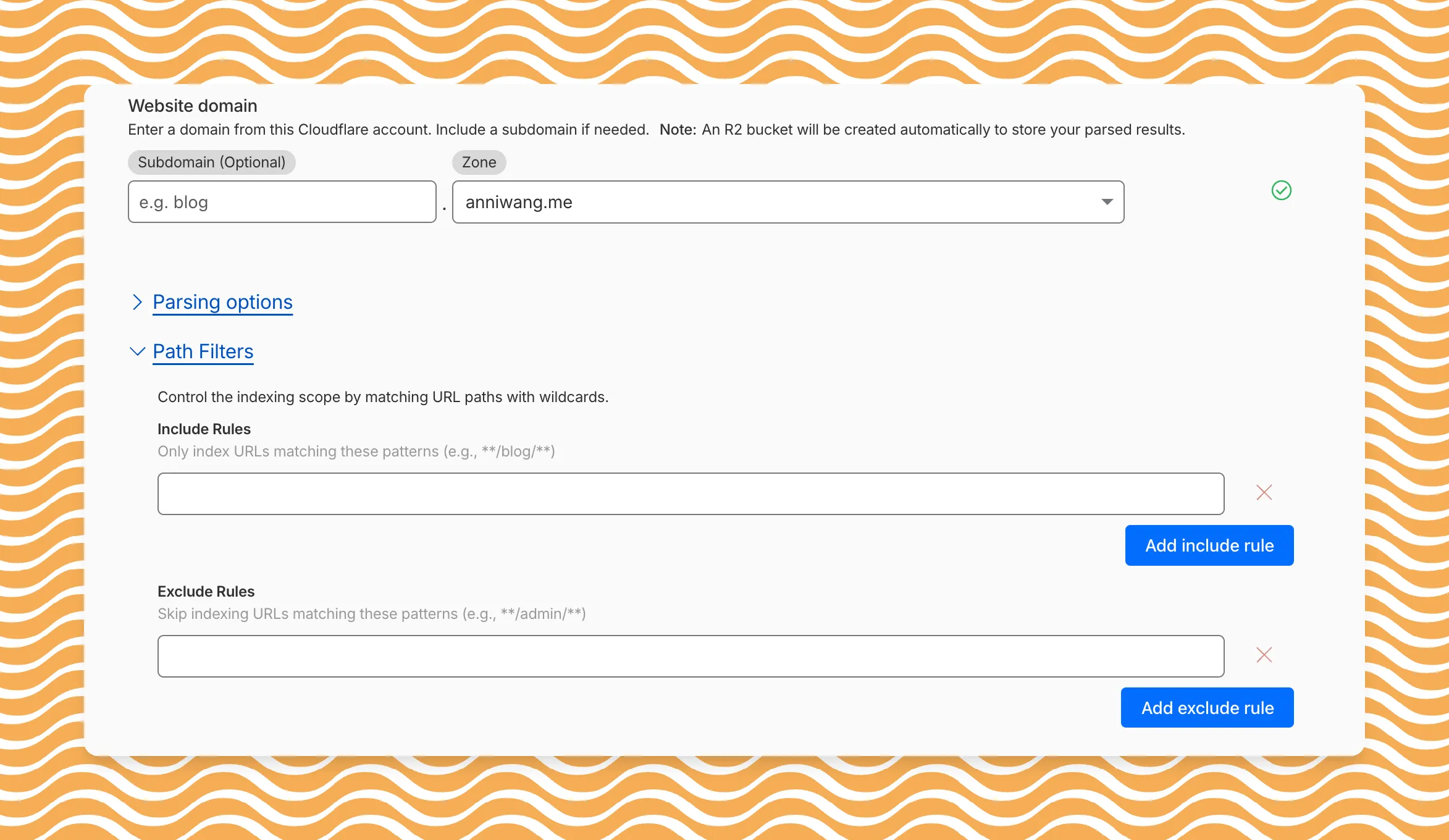
Path filtering uses micromatch ↗ patterns, so you can use
*to match within a directory and**to match across directories.Use case Include Exclude Index docs but skip drafts **/docs/****/docs/drafts/**Keep admin pages out of results — **/admin/**Index only English content **/en/**— Configure path filters when creating a new instance or update them anytime from Settings. Check out path filtering to learn more.
You can now create AI Search instances programmatically using the API. For example, use the API to create instances for each customer in a multi-tenant application or manage AI Search alongside your other infrastructure.
If you have created an AI Search instance via the dashboard before, you already have a service API token registered and can start creating instances programmatically right away. If not, follow the API guide to set up your first instance.
For example, you can now create separate search instances for each language on your website:
Terminal window for lang in en fr es de; docurl -X POST "https://api.cloudflare.com/client/v4/accounts/$ACCOUNT_ID/ai-search/instances" \-H "Authorization: Bearer $API_TOKEN" \-H "Content-Type: application/json" \--data '{"id": "docs-'"$lang"'","type": "web-crawler","source": "example.com","source_params": {"path_include": ["**/'"$lang"'/**"]}}'doneRefer to the REST API reference for additional configuration options.
AI Search now supports custom HTTP headers for website crawling, solving a common problem where valuable content behind authentication or access controls could not be indexed.
Previously, AI Search could only crawl publicly accessible pages, leaving knowledge bases, documentation, and other protected content out of your search results. With custom headers support, you can now include authentication credentials that allow the crawler to access this protected content.
This is particularly useful for indexing content like:
- Internal documentation behind corporate login systems
- Premium content that requires users to provide access to unlock
- Sites protected by Cloudflare Access using service tokens
To add custom headers when creating an AI Search instance, select Parse options. In the Extra headers section, you can add up to five custom headers per Website data source.
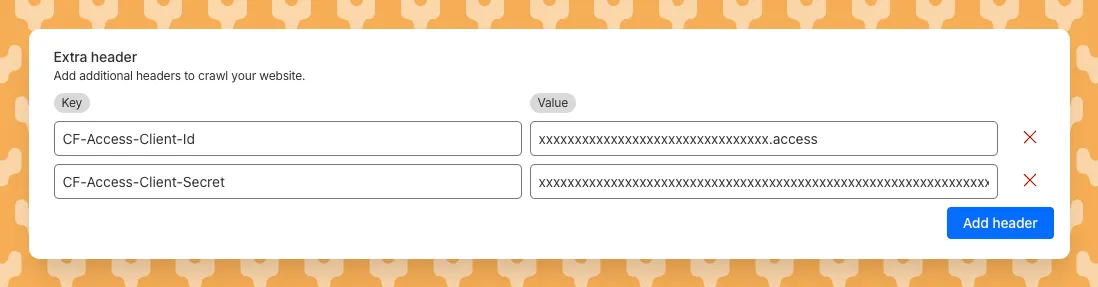
For example, to crawl a site protected by Cloudflare Access, you can add service token credentials as custom headers:
CF-Access-Client-Id: your-token-id.accessCF-Access-Client-Secret: your-token-secretThe crawler will automatically include these headers in all requests, allowing it to access protected pages that would otherwise be blocked.
Learn more about configuring custom headers for website crawling in AI Search.
AI Search now supports reranking for improved retrieval quality and allows you to set the system prompt directly in your API requests.
You can now enable reranking to reorder retrieved documents based on their semantic relevance to the user’s query. Reranking helps improve accuracy, especially for large or noisy datasets where vector similarity alone may not produce the optimal ordering.
You can enable and configure reranking in the dashboard or directly in your API requests:
JavaScript const answer = await env.AI.autorag("my-autorag").aiSearch({query: "How do I train a llama to deliver coffee?",model: "@cf/meta/llama-3.3-70b-instruct-fp8-fast",reranking: {enabled: true,model: "@cf/baai/bge-reranker-base"}});Previously, system prompts could only be configured in the dashboard. You can now define them directly in your API requests, giving you per-query control over behavior. For example:
JavaScript // Dynamically set query and system prompt in AI Searchasync function getAnswer(query, tone) {const systemPrompt = `You are a ${tone} assistant.`;const response = await env.AI.autorag("my-autorag").aiSearch({query: query,system_prompt: systemPrompt});return response;}// Example usageconst query = "What is Cloudflare?";const tone = "friendly";const answer = await getAnswer(query, tone);console.log(answer);Learn more about Reranking and System Prompt in AI Search.
AutoRAG is now AI Search! The new name marks a new and bigger mission: to make world-class search infrastructure available to every developer and business.
With AI Search you can now use models from different providers like OpenAI and Anthropic. By attaching your provider keys to the AI Gateway linked to your AI Search instance, you can use many more models for both embedding and inference.
To use AI Search with other model providers:
- Add provider keys to AI Gateway
- Go to AI > AI Gateway in the dashboard.
- Select or create an AI gateway.
- In Provider Keys, choose your provider, click Add, and enter the key.
- Connect a gateway to AI Search: When creating a new AI Search, select the AI Gateway with your provider keys. For an existing AI Search, go to Settings and switch to a gateway that has your keys under Resources.
- Select models: Embedding models are only available to be changed when creating a new AI Search. Generation model can be selected when creating a new AI Search and can be changed at any time in Settings.
Once configured, your AI Search instance will be able to reference models available through your AI Gateway when making a
/ai-searchrequest:JavaScript export default {async fetch(request, env) {// Query your AI Search instance with a natural language question to an OpenAI modelconst result = await env.AI.autorag("my-ai-search").aiSearch({query: "What's new for Cloudflare Birthday Week?",model: "openai/gpt-5"});// Return only the generated answer as plain textreturn new Response(result.response, {headers: { "Content-Type": "text/plain" },});},};In the coming weeks we will also roll out updates to align the APIs with the new name. The existing APIs will continue to be supported for the time being. Stay tuned to the AI Search Changelog and Discord ↗ for more updates!
- Add provider keys to AI Gateway
AutoRAG now includes a Metrics tab that shows how your data is indexed and searched. Get a clear view of the health of your indexing pipeline, compare usage between
ai-searchandsearch, and see which files are retrieved most often.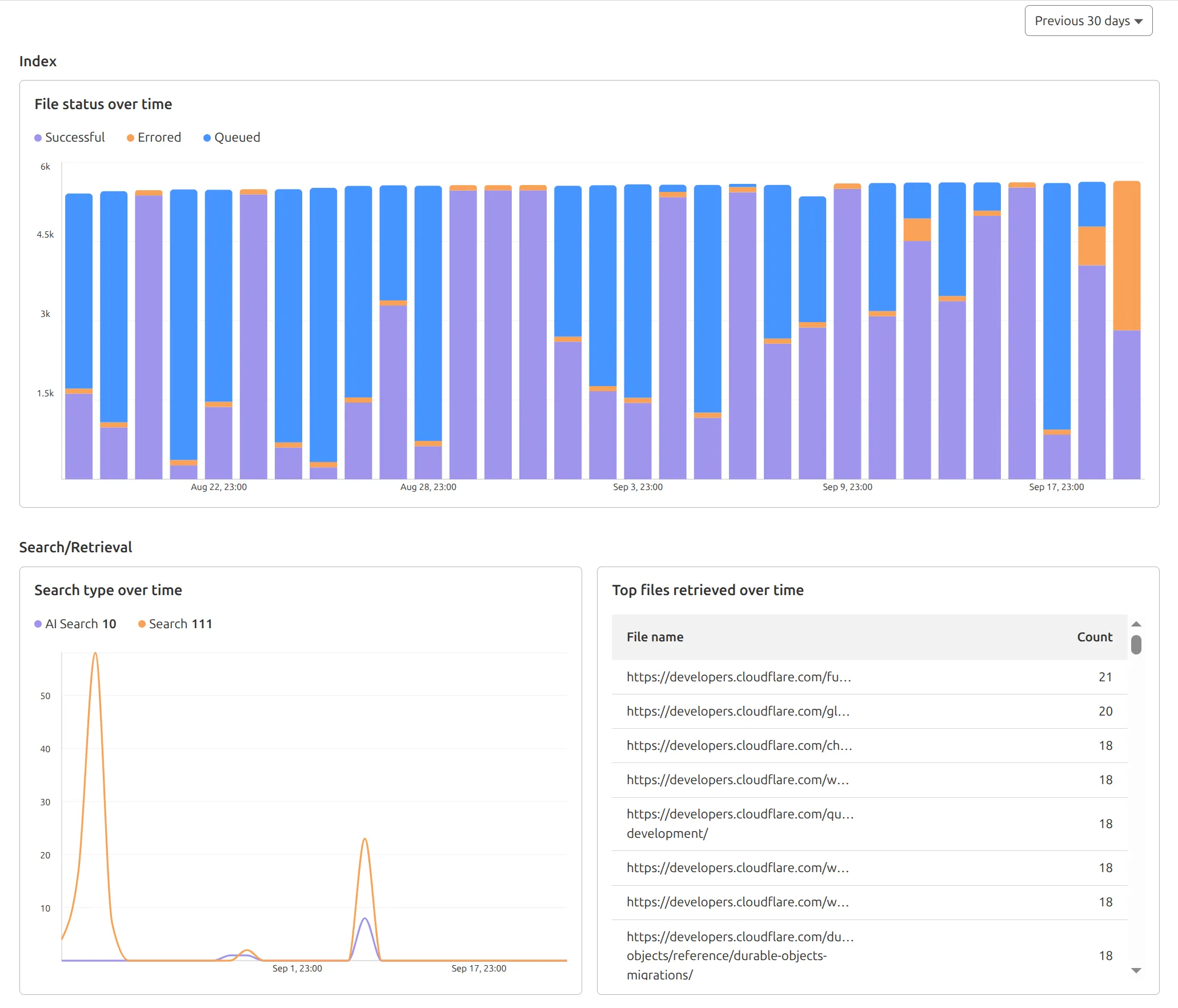
You can find these metrics within each AutoRAG instance:
- Indexing: Track how files are ingested and see status changes over time.
- Search breakdown: Compare usage between
ai-searchandsearchendpoints. - Top file retrievals: Identify which files are most frequently retrieved in a given period.
Try it today in AutoRAG.
You can now expect 3-5× faster indexing in AutoRAG, and with it, a brand new Jobs view to help you monitor indexing progress.
With each AutoRAG, indexing jobs are automatically triggered to sync your data source (i.e. R2 bucket) with your Vectorize index, ensuring new or updated files are reflected in your query results. You can also trigger jobs manually via the Sync API or by clicking “Sync index” in the dashboard.
With the new jobs observability, you can now:
- View the status, job ID, source, start time, duration and last sync time for each indexing job
- Inspect real-time logs of job events (e.g.
Starting indexing data source...) - See a history of past indexing jobs under the Jobs tab of your AutoRAG
This makes it easier to understand what’s happening behind the scenes.
Coming soon: We’re adding APIs to programmatically check indexing status, making it even easier to integrate AutoRAG into your workflows.
Try it out today on the Cloudflare dashboard ↗.
In AutoRAG, you can now view your object's custom metadata in the response from
/searchand/ai-search, and optionally add acontextfield in the custom metadata of an object to provide additional guidance for AI-generated answers.You can add custom metadata to an object when uploading it to your R2 bucket.
When you run a search, AutoRAG now returns any custom metadata associated with the object. This metadata appears in the response inside
attributesthenfile, and can be used for downstream processing.For example, the
attributessection of your search response may look like:{"attributes": {"timestamp": 1750001460000,"folder": "docs/","filename": "launch-checklist.md","file": {"url": "https://wiki.company.com/docs/launch-checklist","context": "A checklist for internal launch readiness, including legal, engineering, and marketing steps."}}}When you include a custom metadata field named
context, AutoRAG attaches that value to each chunk of the file. When you run an/ai-searchquery, thiscontextis passed to the LLM and can be used as additional input when generating an answer.We recommend using the
contextfield to describe supplemental information you want the LLM to consider, such as a summary of the document or a source URL. If you have several different metadata attributes, you can join them together however you choose within thecontextstring.For example:
{"context": "summary: 'Checklist for internal product launch readiness, including legal, engineering, and marketing steps.'; url: 'https://wiki.company.com/docs/launch-checklist'"}This gives you more control over how your content is interpreted, without requiring you to modify the original contents of the file.
Learn more in AutoRAG's metadata filtering documentation.
In AutoRAG, you can now filter by an object's file name using the
filenameattribute, giving you more control over which files are searched for a given query.This is useful when your application has already determined which files should be searched. For example, you might query a PostgreSQL database to get a list of files a user has access to based on their permissions, and then use that list to limit what AutoRAG retrieves.
For example, your search query may look like:
JavaScript const response = await env.AI.autorag("my-autorag").search({query: "what is the project deadline?",filters: {type: "eq",key: "filename",value: "project-alpha-roadmap.md",},});This allows you to connect your application logic with AutoRAG's retrieval process, making it easy to control what gets searched without needing to reindex or modify your data.
Learn more in AutoRAG's metadata filtering documentation.
You can now filter AutoRAG search results by
folderandtimestampusing metadata filtering to narrow down the scope of your query.This makes it easy to build multitenant experiences where each user can only access their own data. By organizing your content into per-tenant folders and applying a
folderfilter at query time, you ensure that each tenant retrieves only their own documents.Example folder structure:
Terminal window customer-a/logs/customer-a/contracts/customer-b/contracts/Example query:
JavaScript const response = await env.AI.autorag("my-autorag").search({query: "When did I sign my agreement contract?",filters: {type: "eq",key: "folder",value: "customer-a/contracts/",},});You can use metadata filtering by creating a new AutoRAG or reindexing existing data. To reindex all content in an existing AutoRAG, update any chunking setting and select Sync index. Metadata filtering is available for all data indexed on or after April 21, 2025.
If you are new to AutoRAG, get started with the Get started AutoRAG guide.
AutoRAG is now in open beta, making it easy for you to build fully-managed retrieval-augmented generation (RAG) pipelines without managing infrastructure. Just upload your docs to R2, and AutoRAG handles the rest: embeddings, indexing, retrieval, and response generation via API.
With AutoRAG, you can:
- Customize your pipeline: Choose from Workers AI models, configure chunking strategies, edit system prompts, and more.
- Instant setup: AutoRAG provisions everything you need from Vectorize, AI gateway, to pipeline logic for you, so you can go from zero to a working RAG pipeline in seconds.
- Keep your index fresh: AutoRAG continuously syncs your index with your data source to ensure responses stay accurate and up to date.
- Ask questions: Query your data and receive grounded responses via a Workers binding or API.
Whether you're building internal tools, AI-powered search, or a support assistant, AutoRAG gets you from idea to deployment in minutes.
Get started in the Cloudflare dashboard ↗ or check out the guide for instructions on how to build your RAG pipeline today.