

You can now interact with your Stream video library using new bindings for Workers! This allows customers to upload content to Stream, provision direct uploads, manage videos, and generate signed URLs from a Worker without making authenticated API calls. We're excited to bring Stream and Workers closer together to empower more programmatic pipelines, tighter integrations, and support generative AI and inference workloads.
Use the Stream binding when you want to:
- Upload videos from URLs or create basic direct upload links for end users
- Generate signed playback tokens without managing signing keys
- Manage video metadata, captions, downloads, and watermarks
- Build video pipelines entirely within Workers
To get started, add the Stream binding to your Wrangler configuration:
JSONC {"$schema": "./node_modules/wrangler/config-schema.json","stream": {"binding": "STREAM"}}TOML [stream]binding = "STREAM"Generate a video with AI and upload directly to Stream or send a URL of a file you already have:
JavaScript const aiResponse = await env.AI.run("google/veo-3.1",{prompt: "A dog walking next to a river",duration: "10s",aspect_ratio: "16:9",resolution: "1080p",generate_audio: true,},{gateway: { id: "experiments" },},);// Veo will return a URL of the generated asset.const videoUrl = aiResponse.result.video;// Alternative option: a video of the Austin Office mobile// const videoUrl = 'https://pub-d9fcbc1abcd244c1821f38b99017347f.r2.dev/aus-mobile.mp4';// Upload to Stream by providing a URLconst streamVideo = await env.STREAM.upload(videoUrl);// The streamVideo response will include the video ID, playback and manifest// URLs, and other information, just like the REST API.TypeScript const aiResponse = await env.AI.run('google/veo-3.1',{prompt: 'A dog walking next to a river',duration: '10s',aspect_ratio: '16:9',resolution: '1080p',generate_audio: true,},{gateway: { id: 'experiments' },},);// Veo will return a URL of the generated asset.const videoUrl = aiResponse.result.video;// Alternative option: a video of the Austin Office mobile// const videoUrl = 'https://pub-d9fcbc1abcd244c1821f38b99017347f.r2.dev/aus-mobile.mp4';// Upload to Stream by providing a URLconst streamVideo = await env.STREAM.upload(videoUrl);// The streamVideo response will include the video ID, playback and manifest// URLs, and other information, just like the REST API.Generate a signed URL without using a signing key or an API call:
JavaScript const video_id = "ce800be43a9772f4bb02f35b860fb516";const token = await env.STREAM.video(video_id).generateToken();// Use the "token" in an iframe embed code, manifest URL, or thumbnail:const embedUrl = `https://customer-igynxd2rwhmuoxw8.cloudflarestream.com/${token}/iframe`;TypeScript const video_id = 'ce800be43a9772f4bb02f35b860fb516';const token = await env.STREAM.video(video_id).generateToken();// Use the "token" in an iframe embed code, manifest URL, or thumbnail:const embedUrl = `https://customer-igynxd2rwhmuoxw8.cloudflarestream.com/${token}/iframe`;Get and set video properties easily:
JavaScript const video_id = "46c8b7f480d410840758c1cb14a72e47";const result = await env.STREAM.video(video_id).details();await env.STREAM.video(video_id).update({meta: { name: "sample video" },});TypeScript const video_id = '46c8b7f480d410840758c1cb14a72e47';const result = await env.STREAM.video(video_id).details();await env.STREAM.video(video_id).update({meta: { name: 'sample video' }});For setup instructions and the full API reference, refer to Bind to Workers API.
Add a binding for Cloudflare Stream (env.STREAM). On the watch page, use the Stream binding to get info based on the ID, and leverage video.meta.name as the page title.
You can now use a Workers binding to transform videos with Media Transformations. This allows you to resize, crop, extract frames, and extract audio from videos stored anywhere, even in private locations like R2 buckets.
The Media Transformations binding is useful when you want to:
- Transform videos stored in private or protected sources
- Optimize videos and store the output directly back to R2 for re-use
- Extract still frames for classification or description with Workers AI
- Extract audio tracks for transcription using Workers AI
To get started, add the Media binding to your Wrangler configuration:
JSONC {"$schema": "./node_modules/wrangler/config-schema.json","media": {"binding": "MEDIA"}}TOML [media]binding = "MEDIA"Then use the binding in your Worker to transform videos:
JavaScript export default {async fetch(request, env) {const video = await env.R2_BUCKET.get("input.mp4");const result = env.MEDIA.input(video.body).transform({ width: 480, height: 270 }).output({ mode: "video", duration: "5s" });return await result.response();},};TypeScript export default {async fetch(request, env) {const video = await env.R2_BUCKET.get("input.mp4");const result = env.MEDIA.input(video.body).transform({ width: 480, height: 270 }).output({ mode: "video", duration: "5s" });return await result.response();},};Output modes include
videofor optimized MP4 clips,framefor still images,spritesheetfor multiple frames, andaudiofor M4A extraction.For more information, refer to the Media Transformations binding documentation.
Real-time transcription in RealtimeKit now supports 10 languages with regional variants, powered by Deepgram Nova-3 running on Workers AI.
During a meeting, participant audio is routed through AI Gateway to Nova-3 on Workers AI — so transcription runs on Cloudflare's network end-to-end, reducing latency compared to routing through external speech-to-text services.
Set the language when creating a meeting via
ai_config.transcription.language:{"ai_config": {"transcription": {"language": "fr"}}}Supported languages include English, Spanish, French, German, Hindi, Russian, Portuguese, Japanese, Italian, and Dutch — with regional variants like
en-AU,en-GB,en-IN,en-NZ,es-419,fr-CA,de-CH,pt-BR, andpt-PT. Usemultifor automatic multilingual detection.If you are building voice agents or real-time translation workflows, your agent can now transcribe in the caller's language natively — no extra services or routing logic needed.
You can now disable a live input to reject incoming RTMPS and SRT connections. When a live input is disabled, any broadcast attempts will fail to connect.
This gives you more control over your live inputs:
- Temporarily pause an input without deleting it
- Programmatically end creator broadcasts
- Prevent new broadcasts from starting on a specific input
To disable a live input via the API, set the
enabledproperty tofalse:Terminal window curl --request PUT \https://api.cloudflare.com/client/v4/accounts/{account_id}/stream/live_inputs/{input_id} \--header "Authorization: Bearer <API_TOKEN>" \--data '{"enabled": false}'You can also disable or enable a live input from the Live inputs list page or the live input detail page in the Dashboard.
All existing live inputs remain enabled by default. For more information, refer to Start a live stream.
New information about broadcast metrics and events is now available in Cloudflare Stream in the Live Input details of the Dashboard.
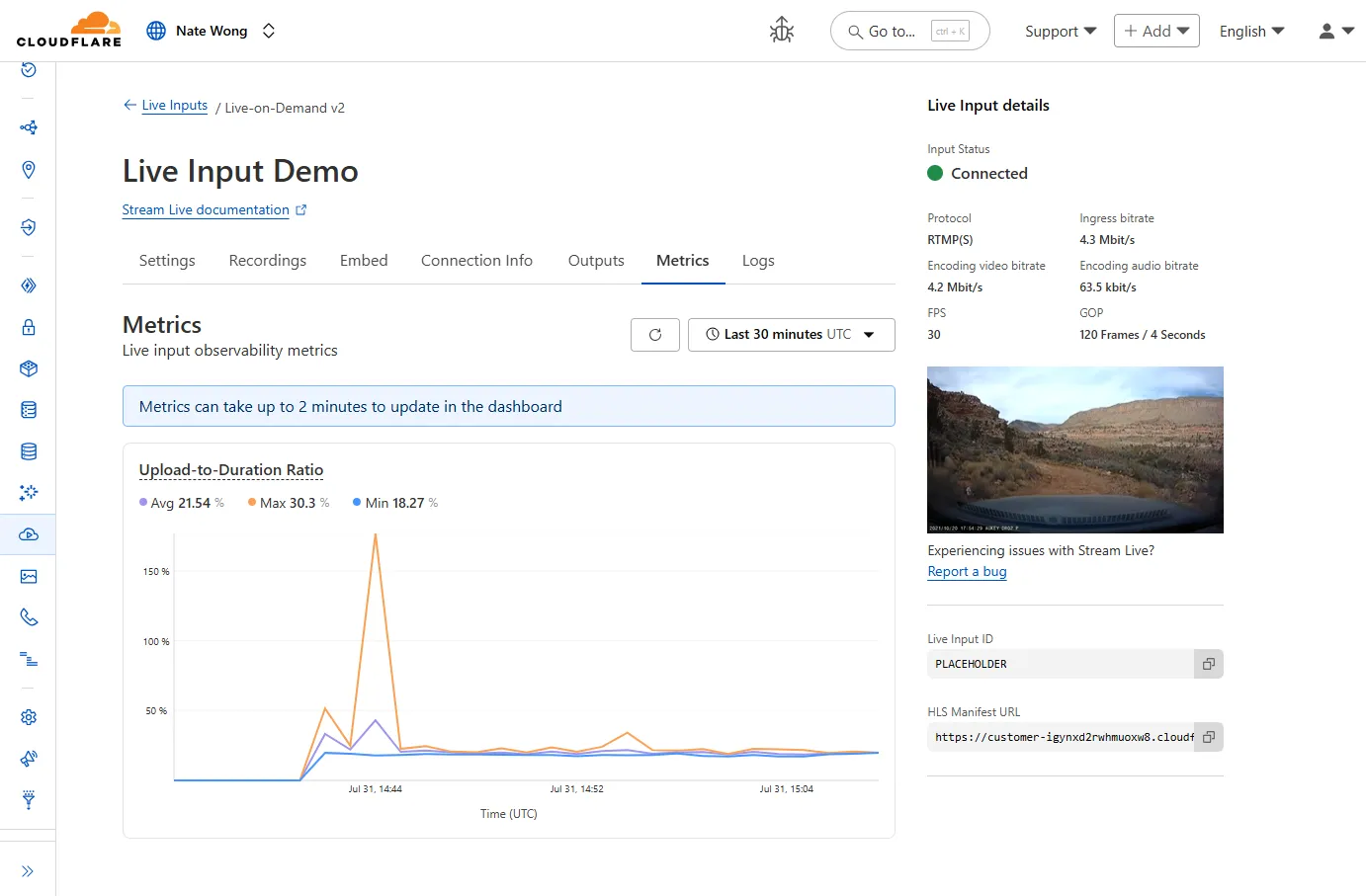
You can now easily understand broadcast-side health and performance with new observability, which can help when troubleshooting common issues, particularly for new customers who are just getting started, and platform customers who may have limited visibility into how their end-users configure their encoders.
To get started, start a live stream (just getting started?), then visit the Live Input details page in Dash.
See our new live Troubleshooting guide to learn what these metrics mean and how to use them to address common broadcast issues.
We now support
audiomode! Use this feature to extract audio from a source video, outputting an M4A file to use in downstream workflows like AI inference, content moderation, or transcription.For example,
Example URL https://example.com/cdn-cgi/media/<OPTIONS>/<SOURCE-VIDEO>https://example.com/cdn-cgi/media/mode=audio,time=3s,duration=60s/<input video with diction>For more information, learn about Transforming Videos.
You can use Images to ingest HEIC images and serve them in supported output formats like AVIF, WebP, JPEG, and PNG.
When inputting a HEIC image, dimension and sizing limits may still apply. Refer to our documentation to see limits for uploading to Images or transforming a remote image.
We have increased the limits for Media Transformations:
- Input file size limit is now 100MB (was 40MB)
- Output video duration limit is now 1 minute (was 30 seconds)
Additionally, we have improved caching of the input asset, resulting in fewer requests to origin storage even when transformation options may differ.
For more information, learn about Transforming Videos.
We are adding source origin restrictions to the Media Transformations beta. This allows customers to restrict what sources can be used to fetch images and video for transformations. This feature is the same as --- and uses the same settings as --- Image Transformations sources.
When transformations is first enabled, the default setting only allows transformations on images and media from the same website or domain being used to make the transformation request. In other words, by default, requests to
example.com/cdn-cgi/mediacan only reference originals onexample.com.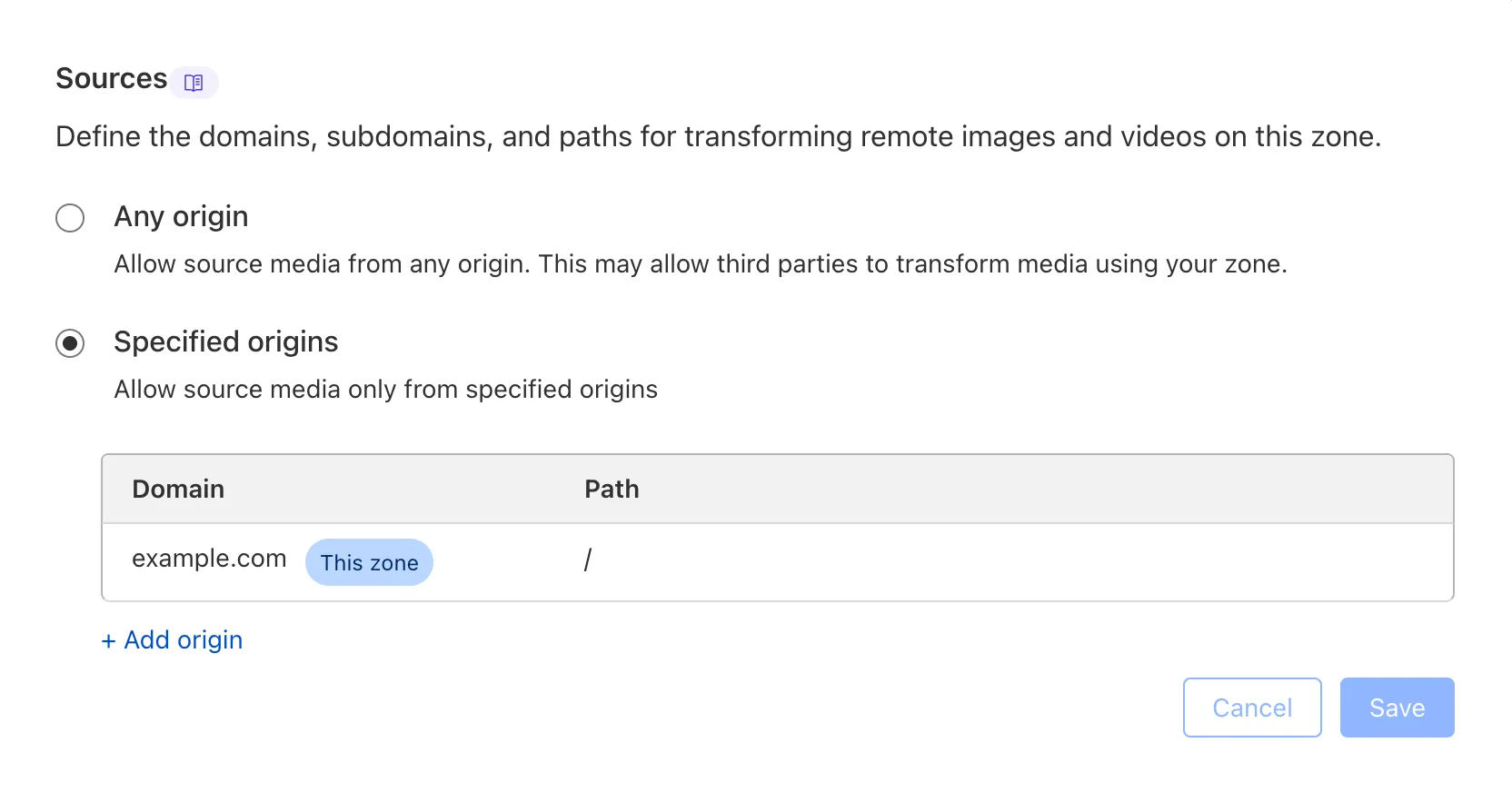
Adding access to other sources, or allowing any source, is easy to do in the Transformations tab under Stream. Click each domain enabled for Transformations and set its sources list to match the needs of your content. The user making this change will need permission to edit zone settings.
For more information, learn about Transforming Videos.
Cloudflare Stream has completed an infrastructure upgrade for our Live WebRTC beta support which brings increased scalability and improved playback performance to all customers. WebRTC allows broadcasting directly from a browser (or supported WHIP client) with ultra-low latency to tens of thousands of concurrent viewers across the globe.
Additionally, as part of this upgrade, the WebRTC beta now supports Signed URLs to protect playback, just like our standard live stream options (HLS/DASH).
For more information, learn about the Stream Live WebRTC beta.
Today, we are thrilled to announce Media Transformations, a new service that brings the magic of Image Transformations to short-form video files, wherever they are stored!
For customers with a huge volume of short video — generative AI output, e-commerce product videos, social media clips, or short marketing content — uploading those assets to Stream is not always practical. Sometimes, the greatest friction to getting started was the thought of all that migrating. Customers want a simpler solution that retains their current storage strategy to deliver small, optimized MP4 files. Now you can do that with Media Transformations.
To transform a video or image, enable transformations for your zone, then make a simple request with a specially formatted URL. The result is an MP4 that can be used in an HTML video element without a player library. If your zone already has Image Transformations enabled, then it is ready to optimize videos with Media Transformations, too.
URL format https://example.com/cdn-cgi/media/<OPTIONS>/<SOURCE-VIDEO>For example, we have a short video of the mobile in Austin's office. The original is nearly 30 megabytes and wider than necessary for this layout. Consider a simple width adjustment:
Example URL https://example.com/cdn-cgi/media/width=640/<SOURCE-VIDEO>https://developers.cloudflare.com/cdn-cgi/media/width=640/https://pub-d9fcbc1abcd244c1821f38b99017347f.r2.dev/aus-mobile.mp4The result is less than 3 megabytes, properly sized, and delivered dynamically so that customers do not have to manage the creation and storage of these transformed assets.
For more information, learn about Transforming Videos.
You can now interact with the Images API directly in your Worker.
This allows more fine-grained control over transformation request flows and cache behavior. For example, you can resize, manipulate, and overlay images without requiring them to be accessible through a URL.
The Images binding can be configured in the Cloudflare dashboard for your Worker or in the Wrangler configuration file in your project's directory:
JSONC {"images": {"binding": "IMAGES", // i.e. available in your Worker on env.IMAGES},}TOML [images]binding = "IMAGES"Within your Worker code, you can interact with this binding by using
env.IMAGES.Here's how you can rotate, resize, and blur an image, then output the image as AVIF:
TypeScript const info = await env.IMAGES.info(stream);// stream contains a valid image, and width/height is available on the info objectconst response = (await env.IMAGES.input(stream).transform({ rotate: 90 }).transform({ width: 128 }).transform({ blur: 20 }).output({ format: "image/avif" })).response();return response;For more information, refer to Images Bindings.
Previously, all viewers watched "the live edge," or the latest content of the broadcast, synchronously. If a viewer paused for more than a few seconds, the player would automatically "catch up" when playback started again. Seeking through the broadcast was only available once the recording was available after it concluded.
Starting today, customers can make a small adjustment to the player embed or manifest URL to enable the DVR experience for their viewers. By offering this feature as an opt-in adjustment, our customers are empowered to pick the best experiences for their applications.
When building a player embed code or manifest URL, just add
dvrEnabled=trueas a query parameter. There are some things to be aware of when using this option. For more information, refer to DVR for Live.
Stream's generated captions leverage Workers AI to automatically transcribe audio and provide captions to the player experience. We have added support for these languages:
cs- Czechnl- Dutchfr- Frenchde- Germanit- Italianja- Japaneseko- Koreanpl- Polishpt- Portugueseru- Russianes- Spanish
For more information, learn about adding captions to videos.