
FAQ
All fields listed in Datasets for the supported datasets are viewable in Log Explorer.
Log Explorer performs best when query parameters focus on narrower ranges of time. You may experience query timeouts when your query would return a large quantity of data. Consider refining your query to improve performance.
Log Explorer starts ingesting logs from the moment you enable the dataset. It will not display logs for events that occurred before the dataset was enabled. Make sure that new events have been generated since enabling the dataset, and check again.
We are actively working on improving error codes. If you receive a generic error, check your SQL syntax (if you are using the custom SQL feature), and make sure you have included a date and a limit. If the query still fails it is likely timing out. Try refining your filters.
The data is stored in Cloudflare R2. Each Log Explorer dataset is stored on a per-customer level, similar to Cloudflare D1, ensuring that your data is kept separate from that of other customers. In the future, this single-tenant storage model will provide you with the flexibility to create your own retention policies and decide in which regions you want to store your data.
Customer Metadata Boundary is currently not supported for Log Explorer.
We are continually scaling the Log Explorer data platform. At present, Log Explorer supports log ingestion rates of up to 50,000 records per second. If your needs exceed this, contact your account team.
Log Explorer allows you to search and analyze your Cloudflare logs directly in the dashboard or via API. Logpush, on the other hand, delivers raw logs to third-party SIEMs or storage systems. You generally do not need both, but some customers choose to use Log Explorer for quick investigation and Logpush for long-term storage or integration with other tools.
Log Explorer is available as a paid add-on for any Application Services or Zero Trust purchase. There is no free version at this time.
Log Explorer billing is based on the volume of logs indexed and stored, measured in gigabytes (GB). Your charges scale with the amount of log data you choose to retain in Log Explorer. Unlike query-based billing models (for example, BigQuery), charges are not based on how often you search or scan your data. Once logs are ingested and stored, you can query them without additional cost.
Yes. In general, Log Explorer bills based on the total volume of logs ingested and stored, including attack traffic. Since these logs are often critical for investigating security incidents, they are treated the same as all other log data.
However, logs generated from Layer 7 (L7) DDoS attack traffic are not ingested by default and therefore do not count toward your Log Explorer usage.
Log Explorer uses Cloudflare Logpush and R2 behind the scenes to stream and store logs. For technical and performance reasons, the data is stored in internal, customer-specific R2 buckets managed by Cloudflare. These buckets are single-tenant to keep your data isolated, but they are not visible in your account's R2 interface. You are not billed separately for this storage — it is included in your Log Explorer usage.
Custom Dashboards currently run on GraphQL. Over time, this will evolve to include deeper integration between the two features, such as building charts directly from logs.
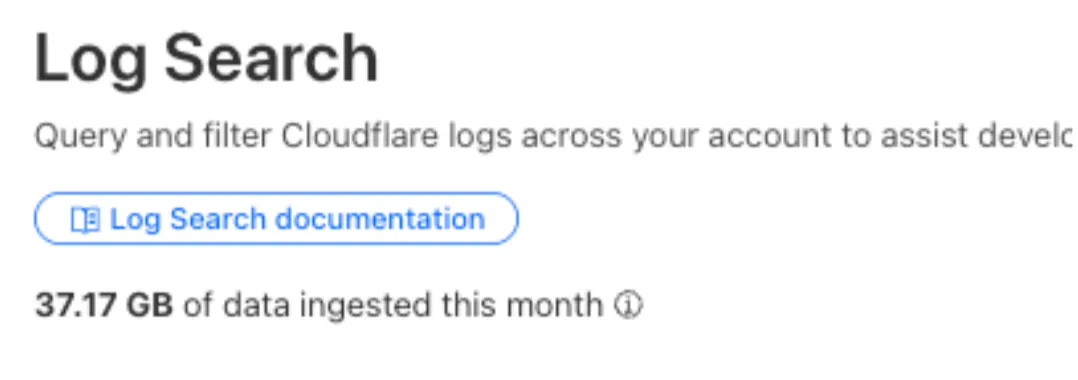
Your monthly usage is displayed at the top of the Log Search and Manage Datasets dashboard sections within Log Explorer.
To turn off Log Explorer you must:
- Stop log ingestion to immediately stop incurring additional charges. To stop log ingestion, disable any enabled datasets at both the account level and zone level.
- Cancel the Log Explorer subscription to stop renewal. Your subscription may remain active until the end of the current billing cycle.
After performing the following steps, you will immediately stop incurring additional charges for Log Explorer.
-
In the Cloudflare dashboard, go to the account-level Manage datasets page.
Go to Manage datasets -
Turn off each dataset you no longer need using the toggle. To confirm each operation, select Stop ingesting logs.
-
In the Cloudflare dashboard, go to the zone-level Manage datasets page.
Go to Manage datasets -
Turn off each dataset you no longer need using the toggle. To confirm each operation, select Stop ingesting logs.
-
Repeat for all relevant zones.
This operation will stop Log Explorer's renewal.
-
In the Cloudflare dashboard, go to the Billing page.
Go to Billing -
In the Subscriptions tab, find the Log Explorer subscription and select Cancel.