
Real-time alerts and daily digests for Threat Events
You can now automate your threat monitoring by setting up custom alerts in your saved views. Instead of manually checking the dashboard for updates, you can subscribe to notifications that trigger whenever new data matches your specific filter sets, like new activity associated to a particular threat actor or spikes in activity within your industry.
By linking your saved views to the Cloudflare Notifications Center, you can ensure the right information reaches your team at the right time.
-
Immediate Alerts: receive real-time notifications the moment a critical event is detected that matches your saved criteria. This is essential for high-priority monitoring, such as tracking active campaigns from specific APT groups.
-
Daily Digests: opt for a summarized report delivered once a day. This is ideal for maintaining situational awareness of broader trends, like regional activity shifts or industry-wide threat landscapes, without cluttering your inbox.
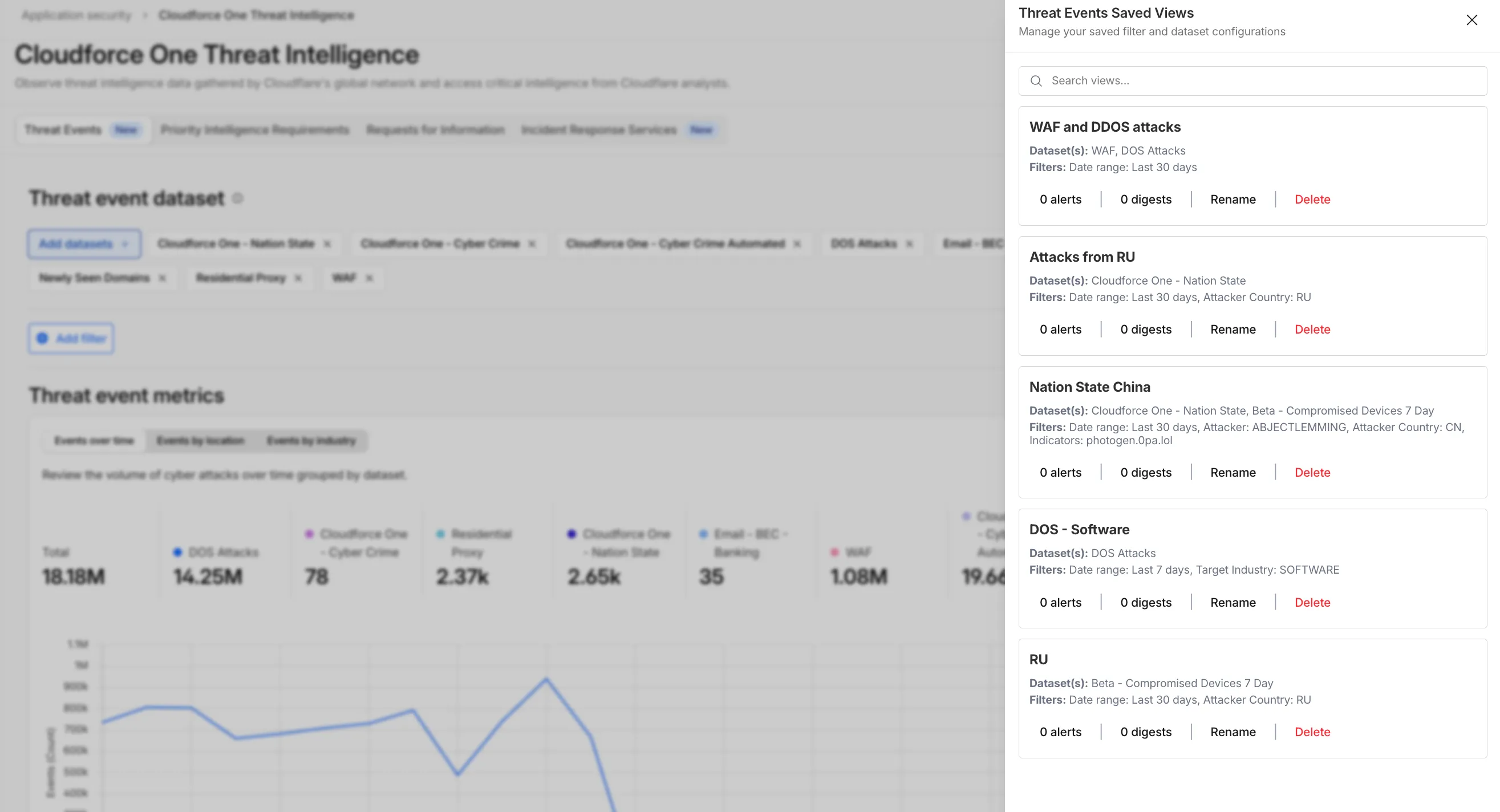
To set up an alert, go to Application Security > Threat Intelligence > Threat Events. From there:
- Choose your datasets and apply your desired filters and select Save View (or select an existing one).
- Open the Manage Saved Views menu.
- Select Add Alert next to your chosen view to configure your notification preferences in the Cloudflare dashboard.
For more technical details on configuring notifications, refer to the Threat Events documentation.