---
title: Generate PDFs Using HTML and CSS
description: As seen in the Deploy a Browser Run Worker guide, Browser Run can be used to generate screenshots for any given URL. Alongside screenshots, you can also generate full PDF documents for a given webpage, and can also provide the webpage markup and style ourselves.
image: https://developers.cloudflare.com/dev-products-preview.png
---
[Skip to content](#%5Ftop)
Was this helpful?
YesNo
[ Edit page ](https://github.com/cloudflare/cloudflare-docs/edit/production/src/content/docs/browser-run/how-to/pdf-generation.mdx) [ Report issue ](https://github.com/cloudflare/cloudflare-docs/issues/new/choose)
Copy page
# Generate PDFs Using HTML and CSS
As seen in the [Deploy a Browser Run Worker](https://developers.cloudflare.com/browser-run/how-to/deploy-worker/) guide, Browser Run can be used to generate screenshots for any given URL. Alongside screenshots, you can also generate full PDF documents for a given webpage, and can also provide the webpage markup and style ourselves.
You can generate PDFs with Browser Run in two ways:
* **[Quick Actions](https://developers.cloudflare.com/browser-run/quick-actions/)**: Use the [/pdf endpoint](https://developers.cloudflare.com/browser-run/quick-actions/pdf-endpoint/). This is ideal if you do not need to customize rendering behavior.
* **[Puppeteer](https://developers.cloudflare.com/browser-run/puppeteer/) or [Playwright](https://developers.cloudflare.com/browser-run/playwright/)**: Use browser automation within Workers for additional control and customization.
Choose the method that best fits your use case.
The following example shows you how to generate a PDF using [Puppeteer](https://developers.cloudflare.com/browser-run/puppeteer/).
## Prerequisites
1. Use the `create-cloudflare` CLI to generate a new Hello World Cloudflare Worker script:
npm yarn pnpm
```
npm create cloudflare@latest -- browser-worker
```
```
yarn create cloudflare browser-worker
```
```
pnpm create cloudflare@latest browser-worker
```
1. Install `@cloudflare/puppeteer`, which allows you to control the Browser Run instance:
npm yarn pnpm bun
```
npm i -D @cloudflare/puppeteer
```
```
yarn add -D @cloudflare/puppeteer
```
```
pnpm add -D @cloudflare/puppeteer
```
```
bun add -d @cloudflare/puppeteer
```
1. Add your Browser Run binding to your new Wrangler configuration:
* [ wrangler.jsonc ](#tab-panel-3568)
* [ wrangler.toml ](#tab-panel-3569)
JSONC
```
{
"browser": {
"binding": "BROWSER",
},
}
```
TOML
```
[browser]
binding = "BROWSER"
```
Use real headless browser during local development
To interact with a real headless browser during local development, set `"remote" : true` in the Browser binding configuration. Learn more in our [remote bindings documentation](https://developers.cloudflare.com/workers/development-testing/#remote-bindings).
1. Replace the contents of `src/index.ts` (or `src/index.js` for JavaScript projects) with the following skeleton script:
TypeScript
```
import puppeteer from "@cloudflare/puppeteer";
const generateDocument = (name: string) => {};
export default {
async fetch(request, env) {
const { searchParams } = new URL(request.url);
let name = searchParams.get("name");
if (!name) {
return new Response("Please provide a name using the ?name= parameter");
}
const browser = await puppeteer.launch(env.BROWSER);
const page = await browser.newPage();
// Step 1: Define HTML and CSS
const document = generateDocument(name);
// Step 2: Send HTML and CSS to our browser
await page.setContent(document);
// Step 3: Generate and return PDF
return new Response();
},
};
```
Explain Code
## 1\. Define HTML and CSS
Rather than using Browser Run to navigate to a user-provided URL, manually generate a webpage, then provide that webpage to the Browser Run instance. This allows you to render any design you want.
Note
You can generate your HTML or CSS using any method you like. This example uses string interpolation, but the method is also fully compatible with web frameworks capable of rendering HTML on Workers such as React, Remix, and Vue.
For this example, we are going to take in user-provided content (via a '?name=' parameter), and have that name output in the final PDF document.
To start, fill out your `generateDocument` function with the following:
TypeScript
```
const generateDocument = (name: string) => {
return `
This is to certify that
${name}
has rendered a PDF using Cloudflare Workers
`;
};
```
Explain Code
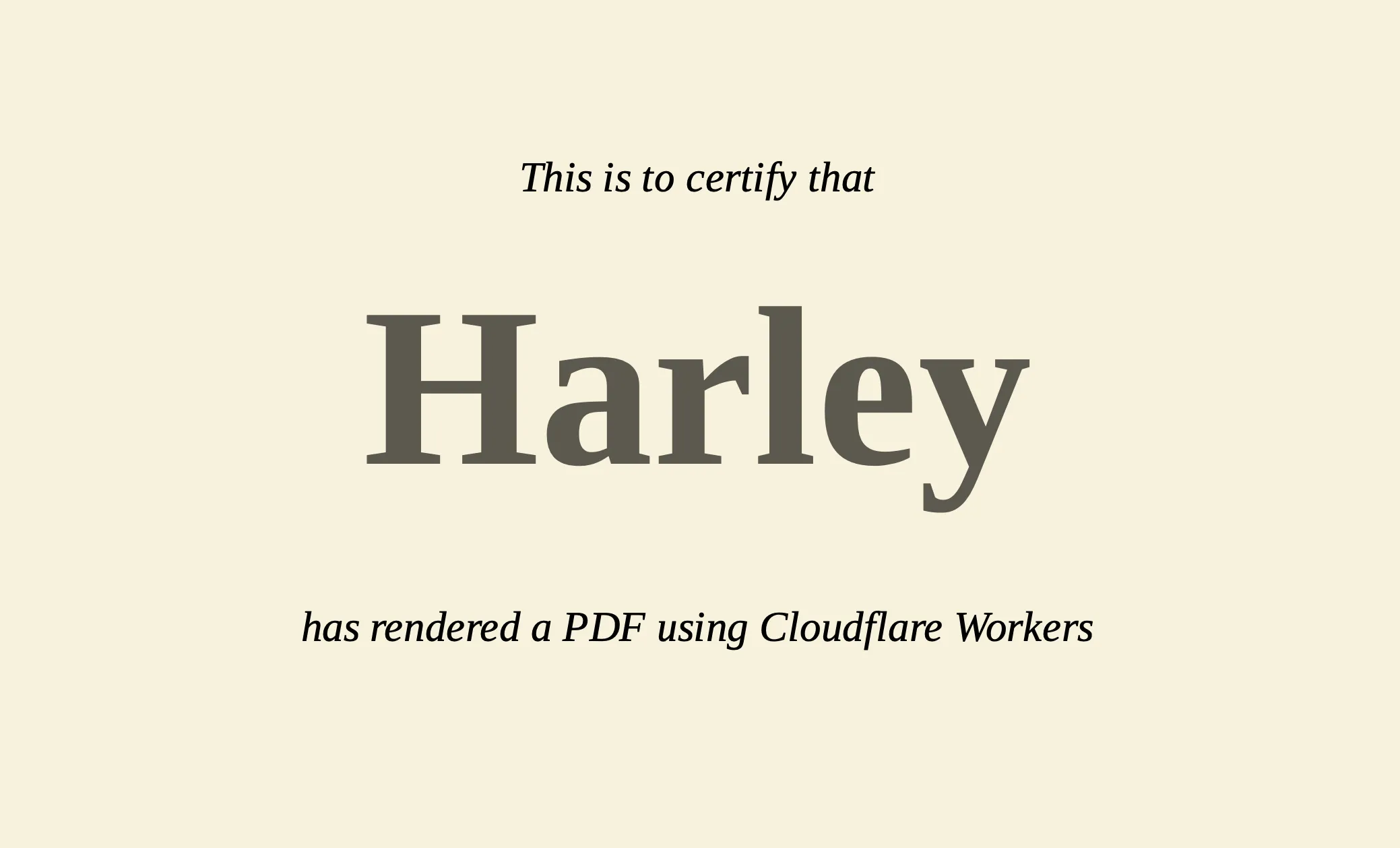
This example HTML document should render a beige background imitating a certificate showing that the user-provided name has successfully rendered a PDF using Cloudflare Workers.
Note
It is usually best to avoid directly interpolating user-provided content into an image or PDF renderer in production applications. To render contents like an invoice, it would be best to validate the data input and fetch the data yourself using tools like [D1](https://developers.cloudflare.com/d1/) or [Workers KV](https://developers.cloudflare.com/kv/).
## 2\. Load HTML and CSS Into Browser
Now that you have your fully styled HTML document, you can take the contents and send it to your browser instance. Create an empty page to store this document as follows:
TypeScript
```
const browser = await puppeteer.launch(env.BROWSER);
const page = await browser.newPage();
```
The [page.setContent() ↗](https://github.com/cloudflare/puppeteer/blob/main/docs/api/puppeteer.page.setcontent.md) function can then be used to set the page's HTML contents from a string, so you can pass in your created document directly like so:
TypeScript
```
await page.setContent(document);
```
## 3\. Generate and Return PDF
With your Browser Run instance now rendering your provided HTML and CSS, you can use the [page.pdf() ↗](https://github.com/cloudflare/puppeteer/blob/main/docs/api/puppeteer.page.pdf.md) command to generate a PDF file and return it to the client.
TypeScript
```
let pdf = page.pdf({ printBackground: true });
```
The `page.pdf()` call supports a [number of options ↗](https://github.com/cloudflare/puppeteer/blob/main/docs/api/puppeteer.pdfoptions.md), including setting the dimensions of the generated PDF to a specific paper size, setting specific margins, and allowing fully-transparent backgrounds. For now, you are only overriding the `printBackground` option to allow your `body` background styles to show up.
Now that you have your PDF data, return it to the client in the `Response` with an `application/pdf` content type:
TypeScript
```
return new Response(pdf, {
headers: {
"content-type": "application/pdf",
},
});
```
## Conclusion
The full Worker script now looks as follows:
TypeScript
```
import puppeteer from "@cloudflare/puppeteer";
const generateDocument = (name: string) => {
return `
This is to certify that
${name}
has rendered a PDF using Cloudflare Workers
`;
};
export default {
async fetch(request, env) {
const { searchParams } = new URL(request.url);
let name = searchParams.get("name");
if (!name) {
return new Response("Please provide a name using the ?name= parameter");
}
const browser = await puppeteer.launch(env.BROWSER);
const page = await browser.newPage();
// Step 1: Define HTML and CSS
const document = generateDocument(name);
// // Step 2: Send HTML and CSS to our browser
await page.setContent(document);
// // Step 3: Generate and return PDF
const pdf = await page.pdf({ printBackground: true });
// Close browser since we no longer need it
await browser.close();
return new Response(pdf, {
headers: {
"content-type": "application/pdf",
},
});
},
};
```
Explain Code
You can run this script to test it via:
npm yarn pnpm
```
npx wrangler dev
```
```
yarn wrangler dev
```
```
pnpm wrangler dev
```
With your script now running, you can pass in a `?name` parameter to the local URL (such as `http://localhost:8787/?name=Harley`) and should see the following:
---
## Custom fonts
If your PDF requires a specific font that is not pre-installed in the Browser Run environment, you can load custom fonts using `addStyleTag`. This allows you to inject fonts from a CDN or embed them as Base64 strings before generating your PDF.
For detailed instructions and examples, refer to [Use your own custom font](https://developers.cloudflare.com/browser-run/features/custom-fonts/).
---
Dynamically generating PDF documents solves a number of common use-cases, from invoicing customers to archiving documents to creating dynamic certificates (as seen in the simple example here).
```json
{"@context":"https://schema.org","@type":"BreadcrumbList","itemListElement":[{"@type":"ListItem","position":1,"item":{"@id":"/directory/","name":"Directory"}},{"@type":"ListItem","position":2,"item":{"@id":"/browser-run/","name":"Browser Run"}},{"@type":"ListItem","position":3,"item":{"@id":"/browser-run/how-to/","name":"Tutorials"}},{"@type":"ListItem","position":4,"item":{"@id":"/browser-run/how-to/pdf-generation/","name":"Generate PDFs Using HTML and CSS"}}]}
```